Driving an Oculus Quest 2 from an ASUS VivoBook S15 Ultrabook with an eGPU (RTX 3060 Ti)
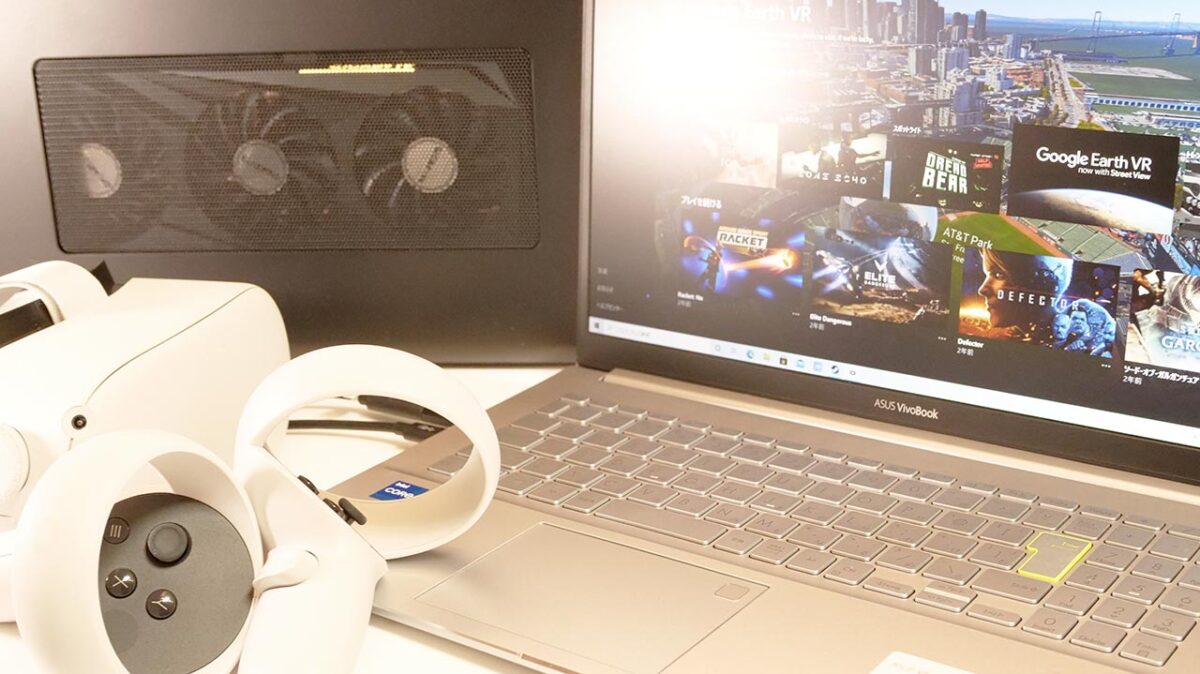
ASUS lent me an ASUS VivoBook S15 — a compact laptop built around the concept of “Move forward, your way."
This configuration runs an 11th-gen Intel Core CPU and comes with a Thunderbolt 4 port. Can you connect an eGPU enclosure over that Thunderbolt 4 port and actually enjoy an Oculus Quest 2? Let’s find out.
The Test Setup: ASUS VivoBook S15 S533EA (S533EA-BQ032TS)
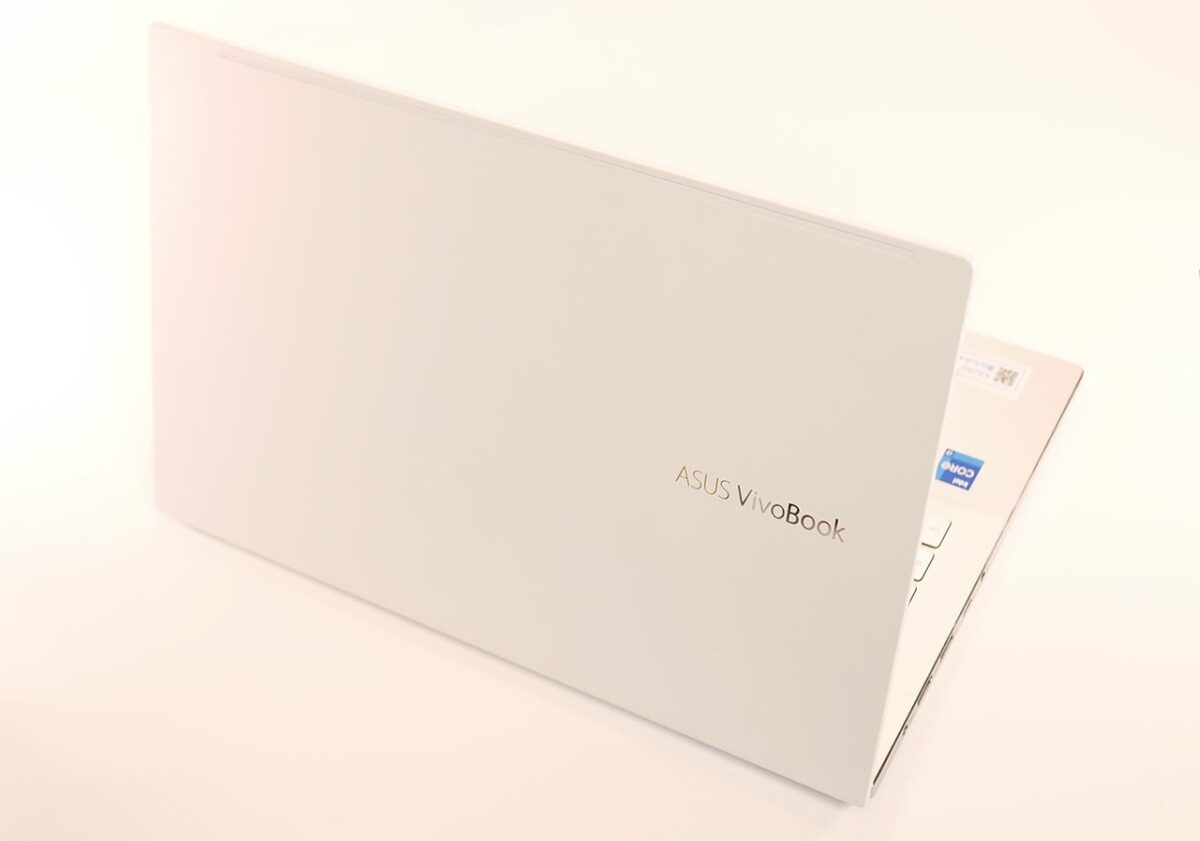
Here’s the spec sheet for the unit I borrowed. This is the configuration I’m testing throughout this article.
| Model | ASUS VivoBook S15 S533EA S533EA-BQ032TS |
|---|---|
| CPU | Core i7-1165G7 4 cores / 8 threads, 2.8GHz (Turbo Boost 4.7GHz) |
| GPU | Integrated GPU (Iris Xe Graphics) |
| Memory | 16GB |
| SSD | 1024GB |
| HDD | None |
| Power adapter | 65W |
| OS | Windows 10 Home 64-bit |
What I Used: Razer Core X
| Item | Razer Core X |
|---|---|
| Manufacturer | Razer |
| Size (H x W x D) (mm) | 230x168x374 |
| Internal dimensions (mm) | 160x57x330 |
| Built-in power supply | 650W |
This eGPU enclosure has a fairly beefy 650W built-in power supply. I’m testing it here with an RTX 3060 Ti installed.
The Razer Core X doesn’t come with a Thunderbolt cable. For this test, I used the cable below.
GIGABYTE GV-N306TGAMING OC-8GD
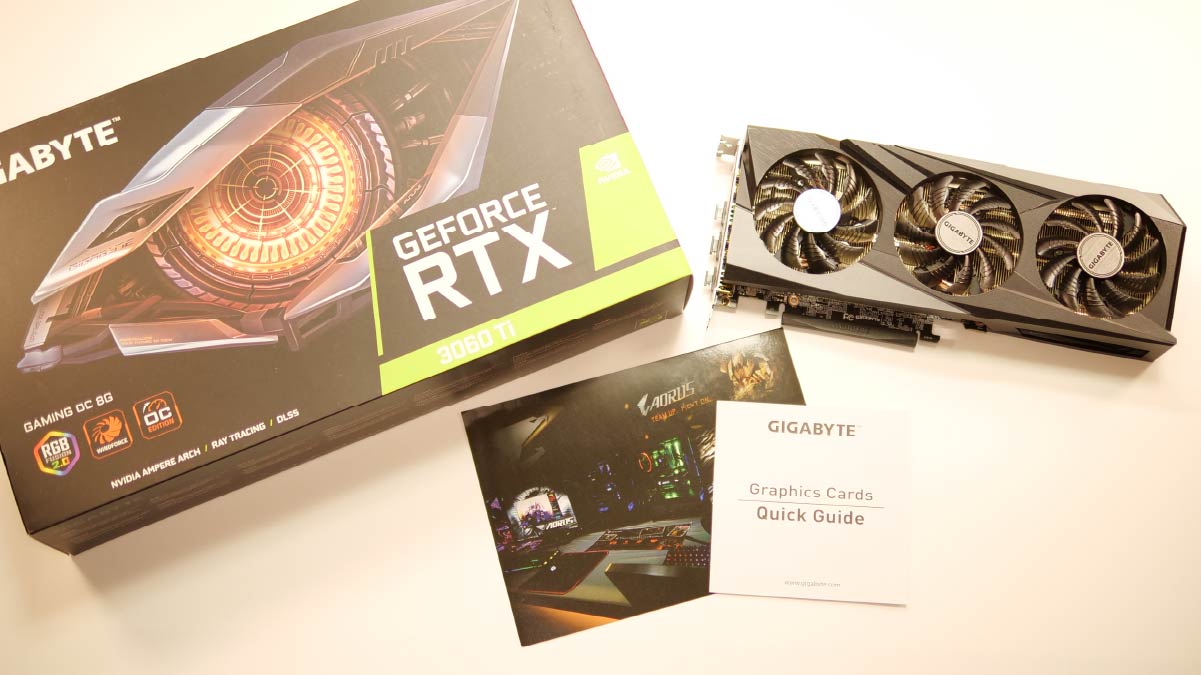
This is a GIGABYTE-made RTX 3060 Ti — one of the more modest, lower-mid-tier models in GIGABYTE’s lineup.
Getting the Oculus Quest 2 Running
Now let’s connect the Oculus Quest 2 and see how much performance this setup delivers. As a benchmark, I’ll use the frame rate the PC is able to render.
In the Oculus app’s graphics settings, I changed the rendering resolution to its minimum value of “0.7x," its default of “1.0x," and its maximum of “1.3x," and recorded the frame rate at each setting.
For what it’s worth, when using the Oculus Quest 2 over Oculus Link, a rendering resolution of “1.0x" already looks quite sharp. Unless your PC has a lot of headroom to spare, there’s not much reason to push it any higher than that.
Connecting the Oculus Quest 2: The Cabling
The ASUS VivoBook S15 has a single Thunderbolt 4 port on its left side.
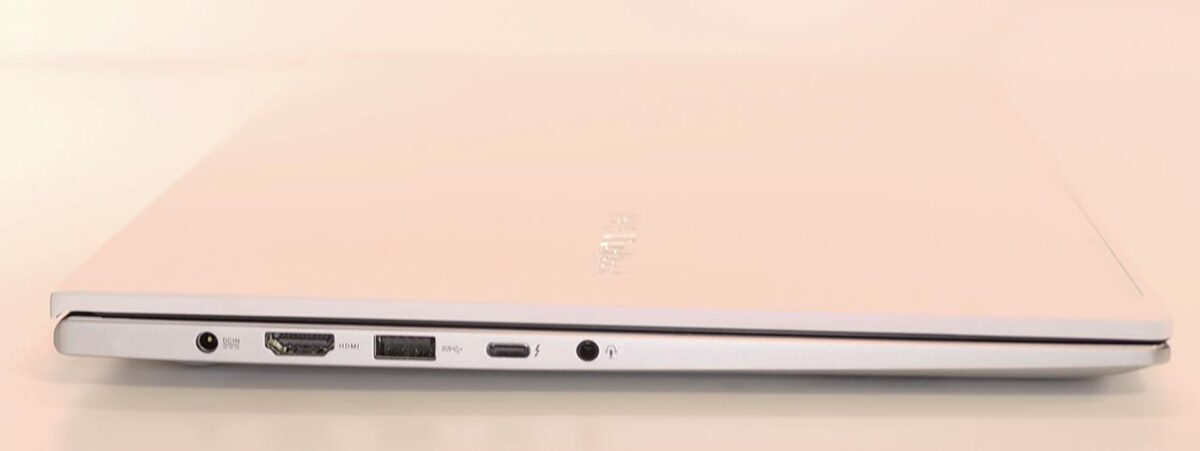
This is where I connect the eGPU enclosure. That leaves the USB Type-C port occupied, so connecting the Oculus Quest 2 means falling back on a USB Type-A port instead. On the ASUS VivoBook S15, the left-side USB port supports USB 3.2, while the right-side one is USB 2.0 — ideally you’d want to use the left one.
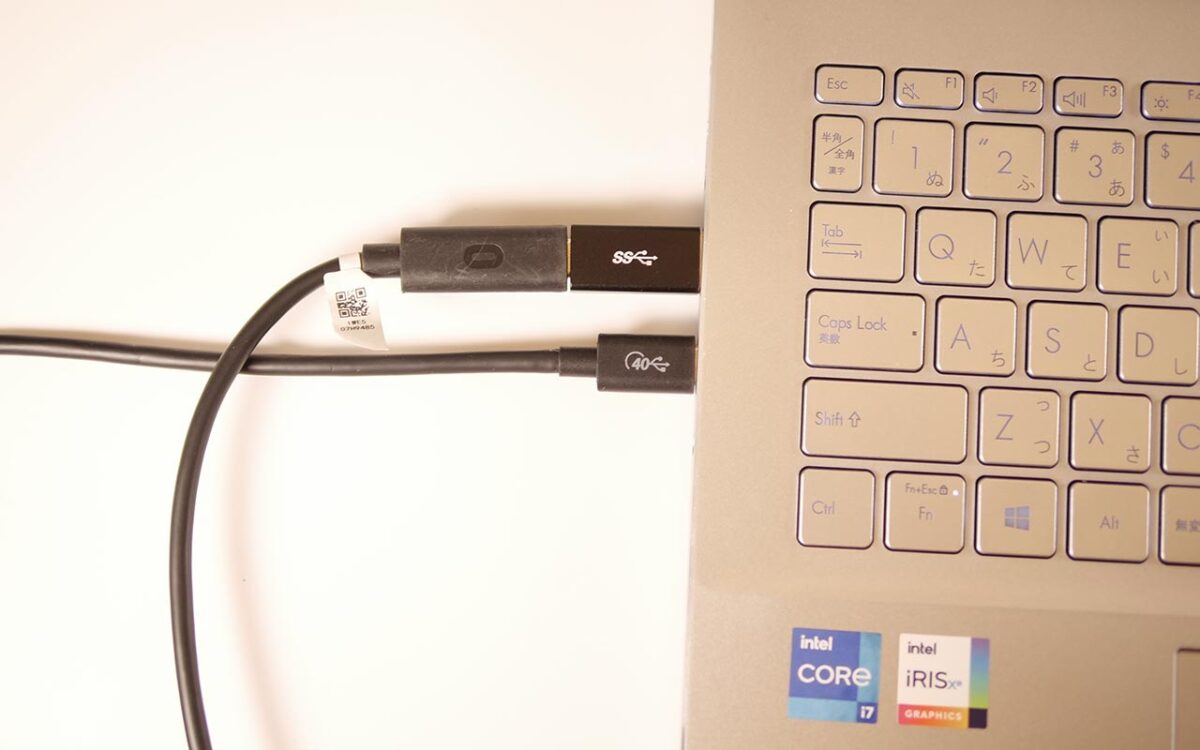
You’ll need either a USB Type-A-to-Type-C cable, or an adapter like the one below.
The ASUS VivoBook S15 has three USB Type-A ports in total, and all of them supply only around 2.5W of power.
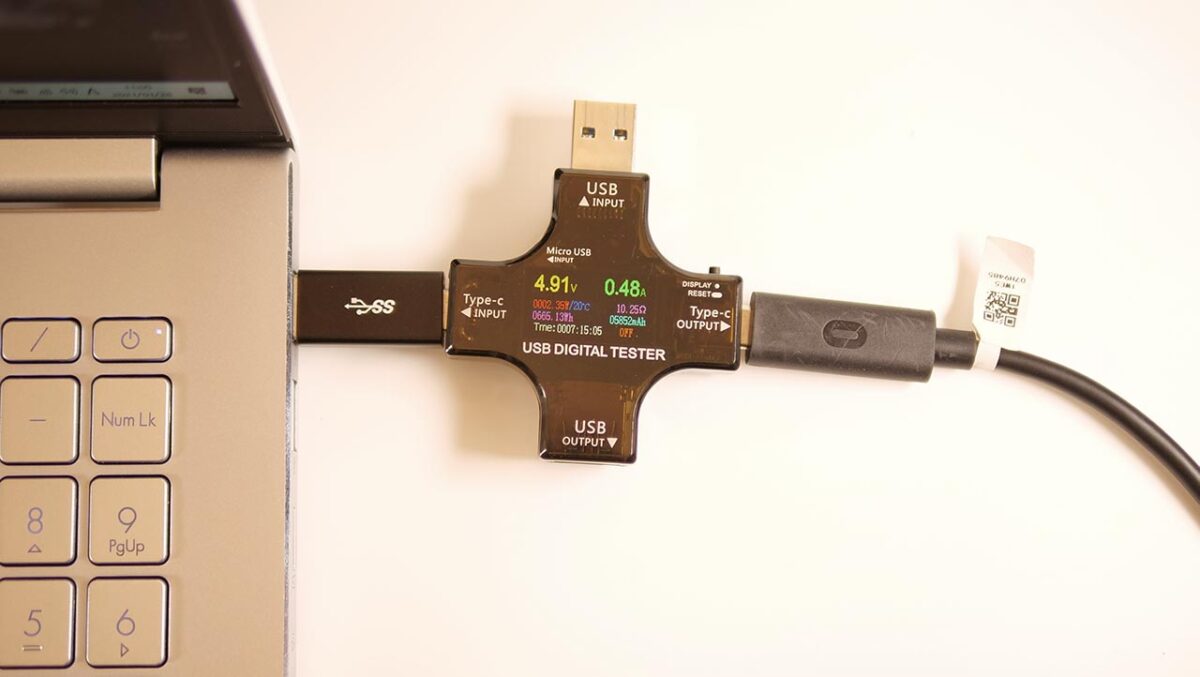
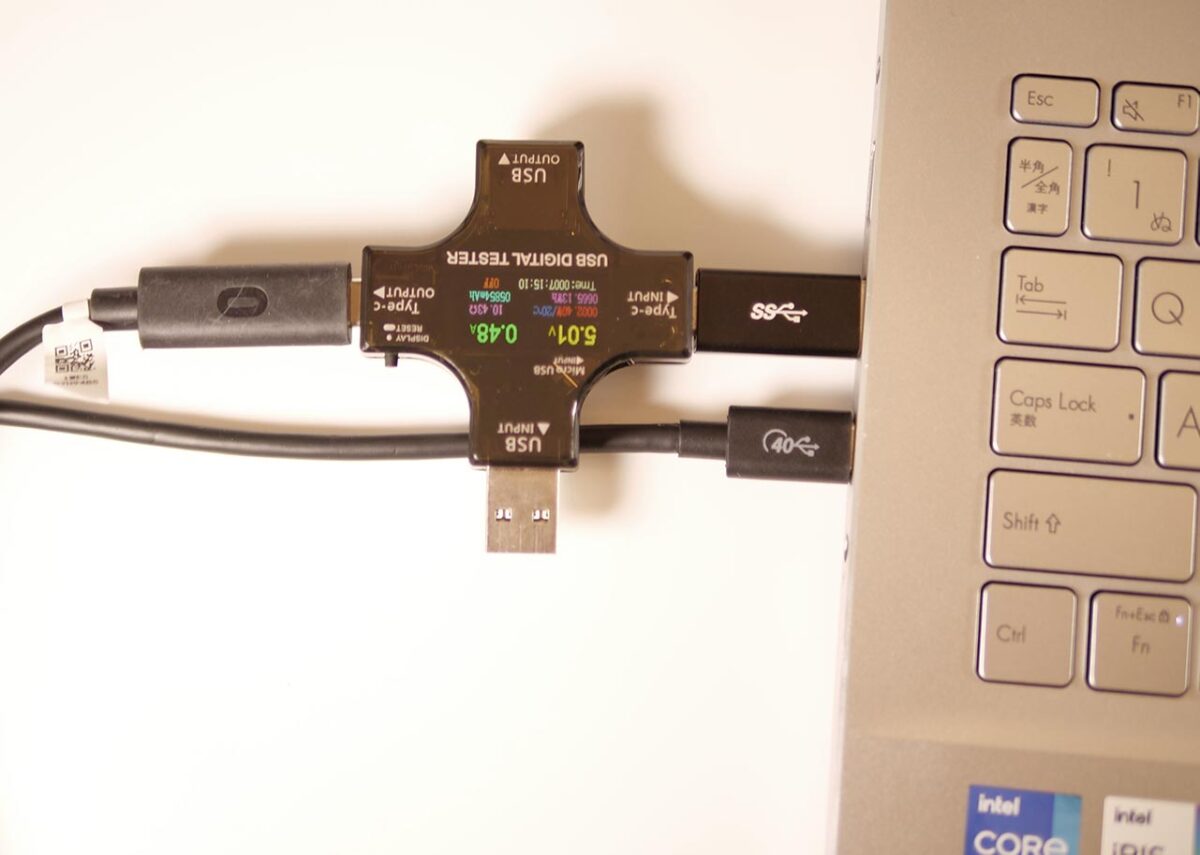
While Oculus Link is running, the Oculus Quest 2’s battery gradually drains. If you’re planning a long session, it’s worth starting from a full charge.
As an Amazon Associate we earn from qualifying purchases.
Frame Rate in Beat Saber
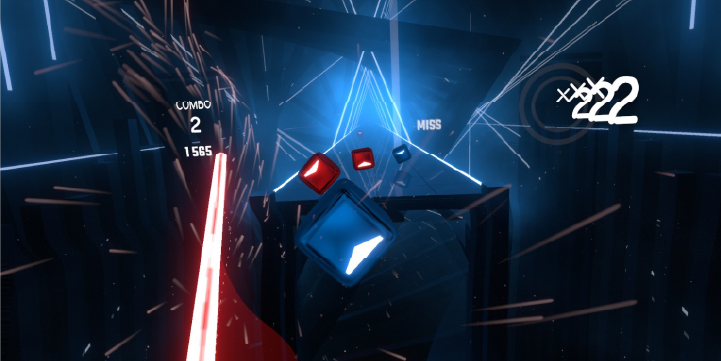
As a classic example of a lightweight VR app, I’m testing Beat Saber.
The frame rate comes in above 250fps — you won’t feel any heaviness at all. Very comfortable.
Frame Rate in Half-Life: Alyx

As an app with much richer visuals, I’m running Half-Life: Alyx.
Low Quality Setting
At the low quality setting, no frame drops occur. That said, if you push the rendering resolution up to 1.3x, textures can occasionally fail to load in time, leaving flat, undetailed surfaces. In practice, a resolution around 1.0x is the safer bet.
Maximum Quality Setting
The pattern holds at the maximum quality setting too. There are no frame drops, but at 1.3x resolution textures can again fail to keep up.
Frame Rate in SteamVR Home
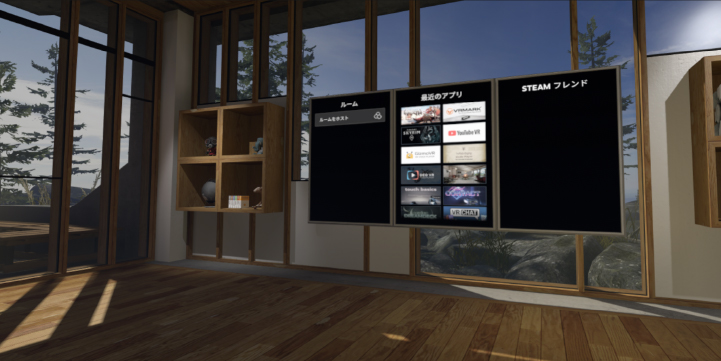
This is the home screen you land on when you launch SteamVR. Since you’ll see it every time you start SteamVR, if it doesn’t run comfortably here, that friction adds up fast.
The frame rate holds above 90fps here — comfortable.
Frame Rate in Asgard’s Wrath
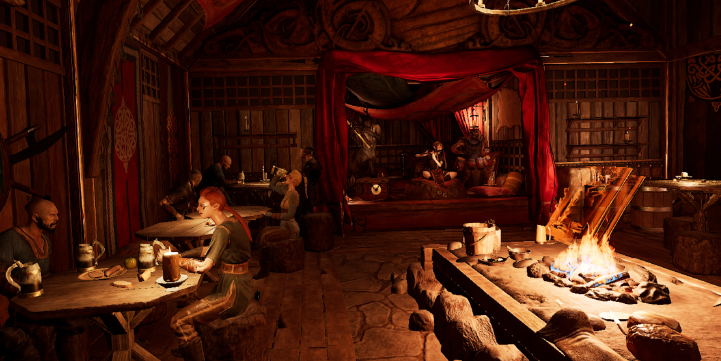
This is the big-budget RPG announced alongside Oculus Link itself — a classic example of a heavy VR app.
Asgard’s Wrath’s recommended CPU is an Intel Core i7-7700 or better. Here’s how the CPU benchmark app Cinebench R20 compares:
Asgard's Wrath Recommended CPU Performance vs. VivoBook S15
The ASUS VivoBook S15’s CPU doesn’t reach Asgard’s Wrath’s recommended performance level. With that in mind, let’s check the frame rate.
Quality Setting: “Easy"
Asgard's Wrath (Easy) — Oculus Quest 2 x VivoBook S15 + RTX3060Ti
It plays without any frame drops. At a rendering resolution of 1.0x there’s still headroom to spare — plenty playable.
Quality Setting: “High"
Asgard's Wrath (High) — Oculus Quest 2 x VivoBook S15 + RTX3060Ti
At the Oculus Quest 2’s lowest rendering resolution setting of “0.7x," the frame rate holds at 72fps, but as soon as the CPU picks up any other work, things get choppy — I can’t recommend running it this way.
You’re better off sticking with the “Easy" quality setting in the app.
Frame Rate Results Across Rendering Resolutions
Even when you drop the rendering resolution somewhat, the Oculus Quest 2 shows little screen-door effect (that visible grid of pixel gaps) and stays comfortable to use.
In practice, as long as the default setting doesn’t drop frames, you can consider the setup good enough to use.
Standard Setting (4128 x 2096)
With the PC-side Oculus app’s rendering resolution left at the middle “1.0x" setting (resolution: 4128 x 2096), I measured the frame rate for each app.
Oculus Quest 2 (Rendering resolution 1.0x) x VivoBook S15 + RTX3060Ti
Frame drops occur only with Asgard’s Wrath at the “High" quality setting. CPU performance is the bottleneck when it comes to pushing apps to higher quality.
Frame-Rate-Priority Setting (2784 x 1408)
I set the PC-side Oculus app’s rendering resolution to its minimum “0.7x" (resolution: 2784 x 1408), the setting that gives the highest possible frame rate. At this setting, the image looks a bit soft and compressed, like a heavily compressed video, but performance is rock solid.
Every app runs with plenty of margin here. Even with each app’s quality setting maxed out, no frame drops occur.
Quality-Priority Setting (5408 x 2736)
I set the PC-side Oculus app’s rendering resolution to its maximum “1.3x" (resolution: 5408 x 2736), the setting that produces the highest possible image quality, and measured the frame rate.
Oculus Quest 2 (Rendering resolution 1.3x) x VivoBook S15 + RTX3060Ti
Frame drops only show up with Asgard’s Wrath at the “High" quality setting. Half-Life: Alyx can also occasionally show flat, undetailed textures that fail to load in time, so I can’t recommend running at this resolution.
Realistically, there’s no need to push the rendering resolution this high.
What I Could Not Verify
This is a single review unit lent by ASUS, so I can’t say how much these numbers would vary between individual units. I only tested with the specific Thunderbolt cable, Razer Core X enclosure, and GIGABYTE RTX 3060 Ti listed above — a different cable, eGPU enclosure, or card model could shift the numbers. I also stuck to four apps here; a heavier or more CPU-bound title than Asgard’s Wrath could behave differently.
In Summary: Yes, With the CPU as the Ceiling
Can the ASUS VivoBook S15 + RTX 3060 Ti drive an Oculus Quest 2?
Yes — the ASUS VivoBook S15 paired with an RTX 3060 Ti handles an Oculus Quest 2 comfortably.
That said, the CPU can become the bottleneck at times.
The Oculus Quest 2’s display already has a high pixel density, so even leaving the Oculus app’s rendering resolution on Auto still looks plenty sharp.
The ASUS VivoBook S15 is a mobile ultrabook built around an 11th-gen CPU. CPU performance in mobile ultrabooks keeps climbing generation over generation, and once you fix the graphics bottleneck by adding an RTX 3060 Ti, it turns out VR is enjoyable to this degree.
The CPU doesn’t have much headroom to spare, so if you’re running a heavy app, you’ll get the most out of VR by making sure nothing else is competing for CPU time in the background.

 https://kimono-oyaji.com/en/asus-vivobook-s15-rtx3060ti-en/