GALLERIA RM5R-G60S Review: A Budget Mini-Tower Gaming PC (Ryzen 5 3500 / GTX 1660 SUPER), Tested in VR
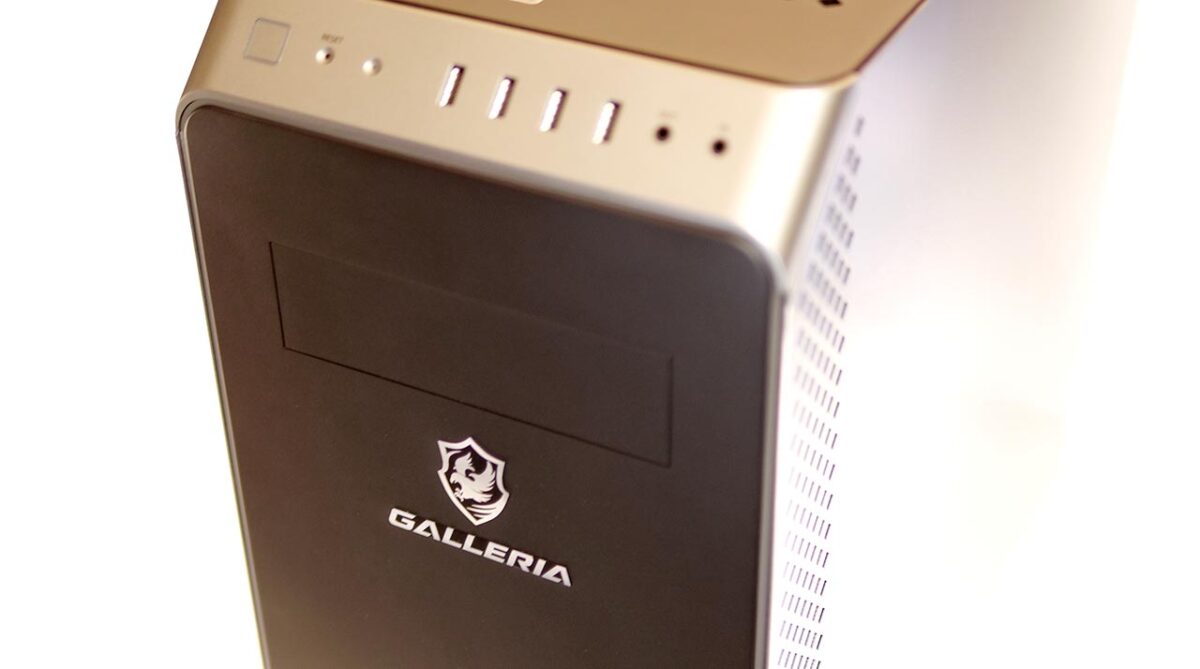
PC retailer Dospara lent me a GALLERIA RM5R-G60S. It is a mini-tower gaming PC — the cheapest model in its lineup. Can a budget desktop like this actually hold up in VR?
What Is GALLERIA?
GALLERIA is the gaming-PC brand from PC retailer Dospara.
Dospara has been in business since 1992, and the GALLERIA line itself dates back to 2002.
In July 2020 the lineup got a design refresh, and the product range became a lot easier to make sense of.
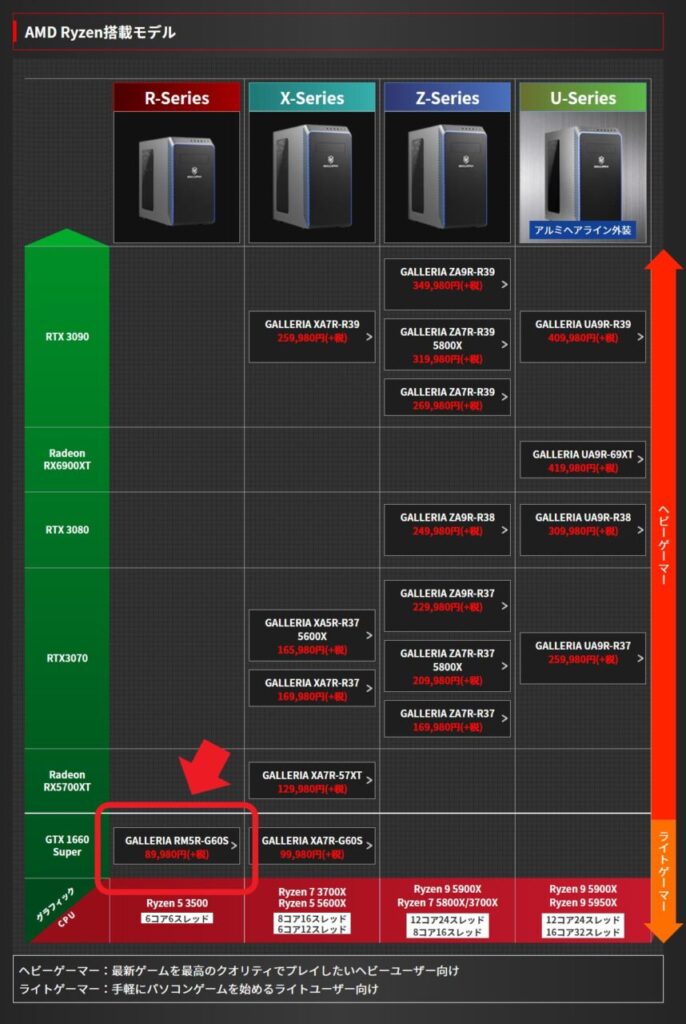
*Prices and models reflect the time of writing (February 7, 2021).
This time I borrowed the GALLERIA RM5R-G60S, the cheapest model among those built around an AMD CPU.
The Test Setup: GALLERIA RM5R-G60S
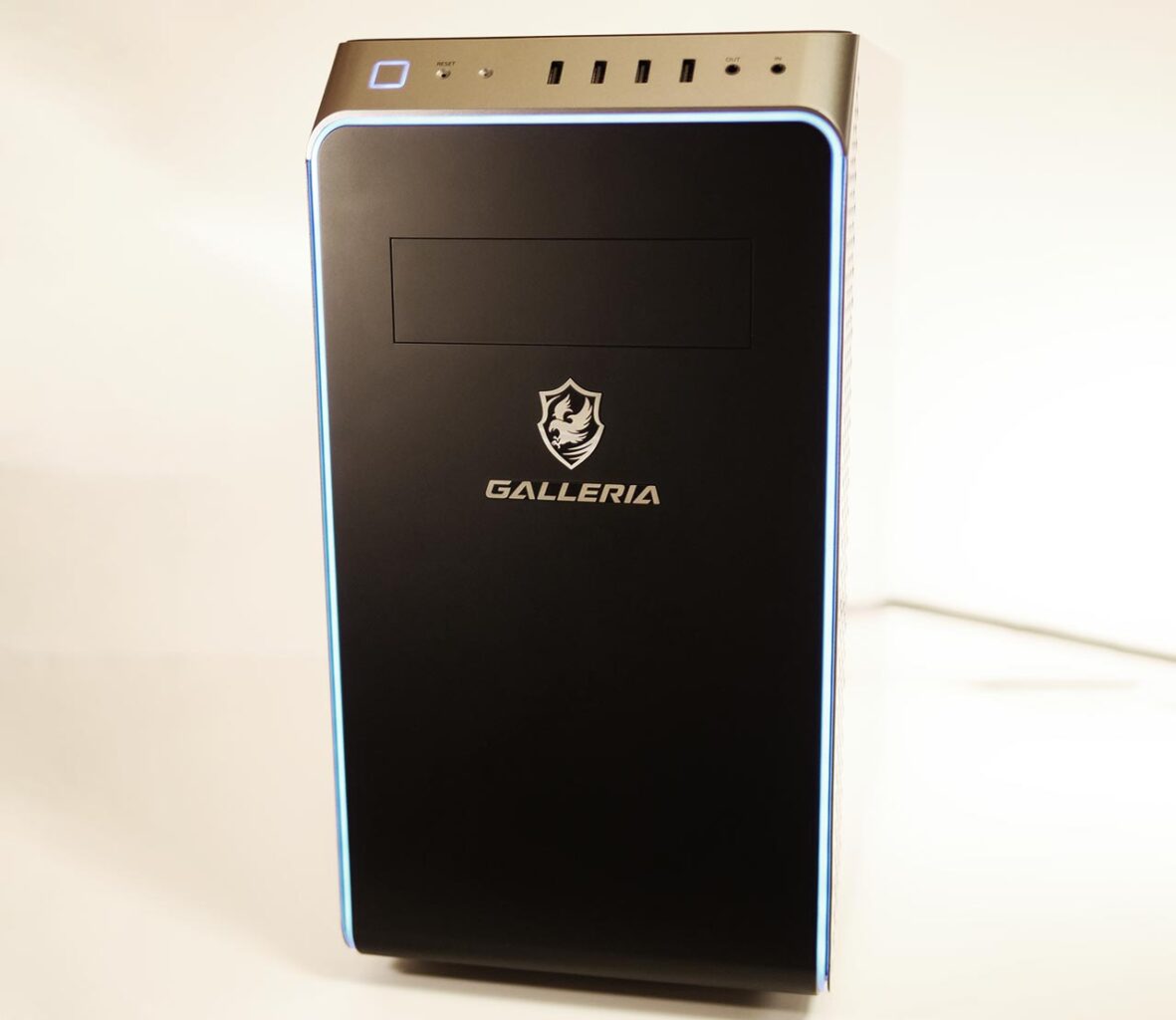
Here are the specs of the unit I borrowed. This is the configuration I am testing throughout this article.
| Model | GALLERIA RM5R-G60S |
|---|---|
| CPU | AMD Ryzen 5 3500 6 cores / 6 threads, 3.6GHz (Turbo Boost 4.1GHz) |
| GPU | NVIDIA GeForce GTX 1660 SUPER 6GB GDDR6 |
| Memory | 16GB |
| SSD | 512GB |
| HDD | None |
| Power supply | 550W quiet power supply (80 PLUS Bronze) |
| OS | Windows 10 Home 64-bit |
Design and Expandability
The GALLERIA RM5R-G60S falls into the mini-tower category.
There is no intake vent on the front, which keeps the look very clean.
Exterior and Interfaces
Front
The front panel is flat, with no intake vent. The “GALLERIA" logo sits neatly within an otherwise simple design.
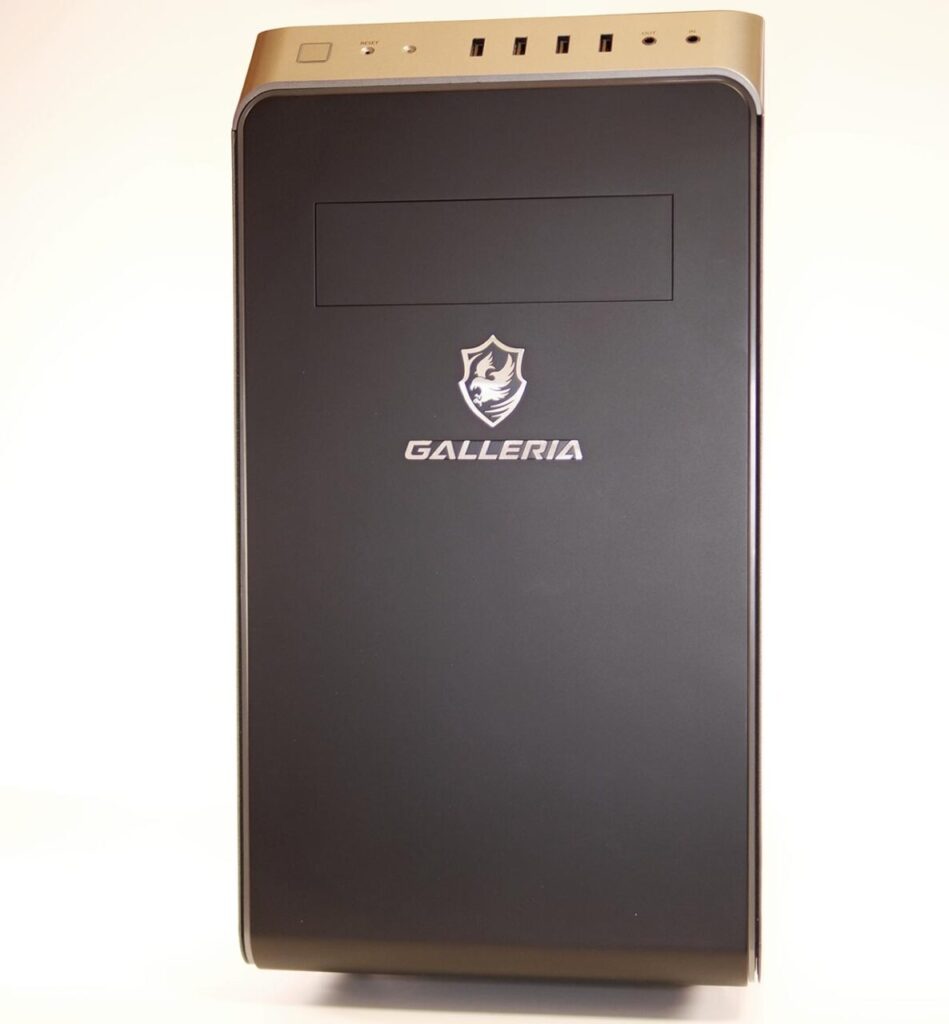
The front interfaces are angled, which makes them easy to reach. Since this is a mini-tower, if you place it on a desk, the ports end up sitting fairly high.
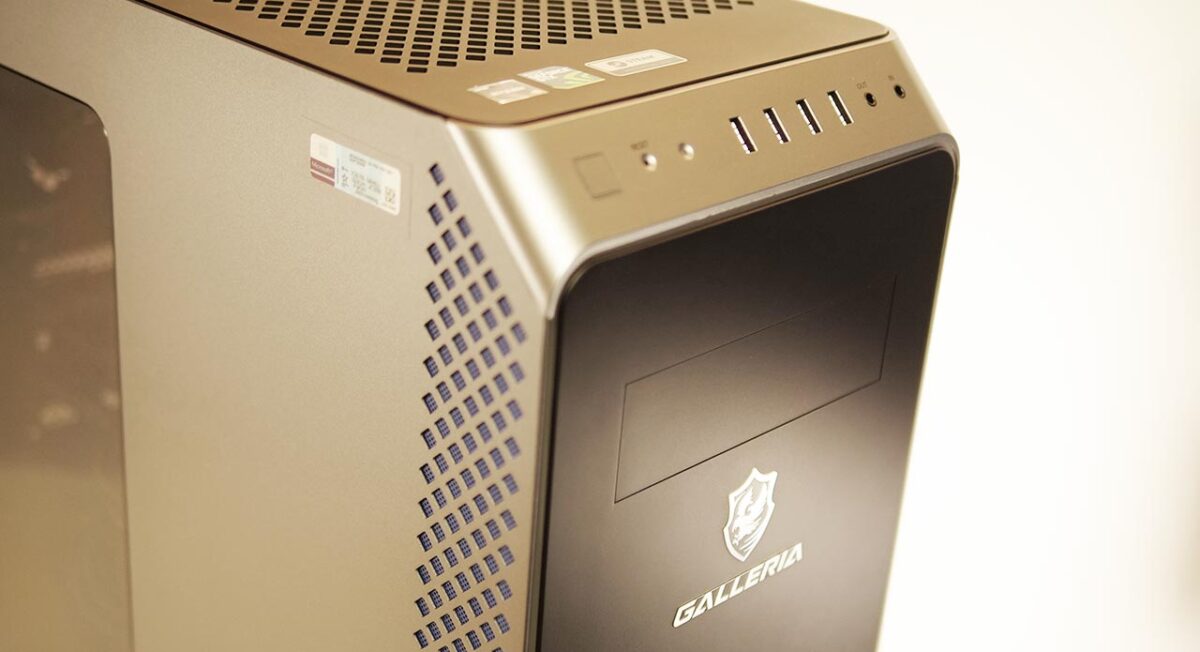
Front interfaces
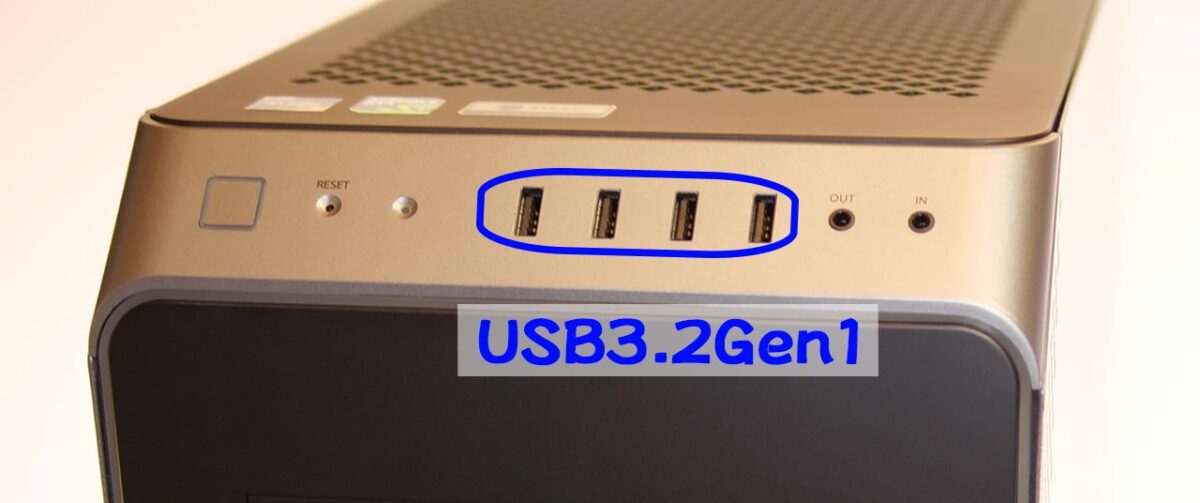
Power button, reset button, USB 3.2 Gen1 Type-A x4, headphone/mic jack
Top
The top panel is flat.
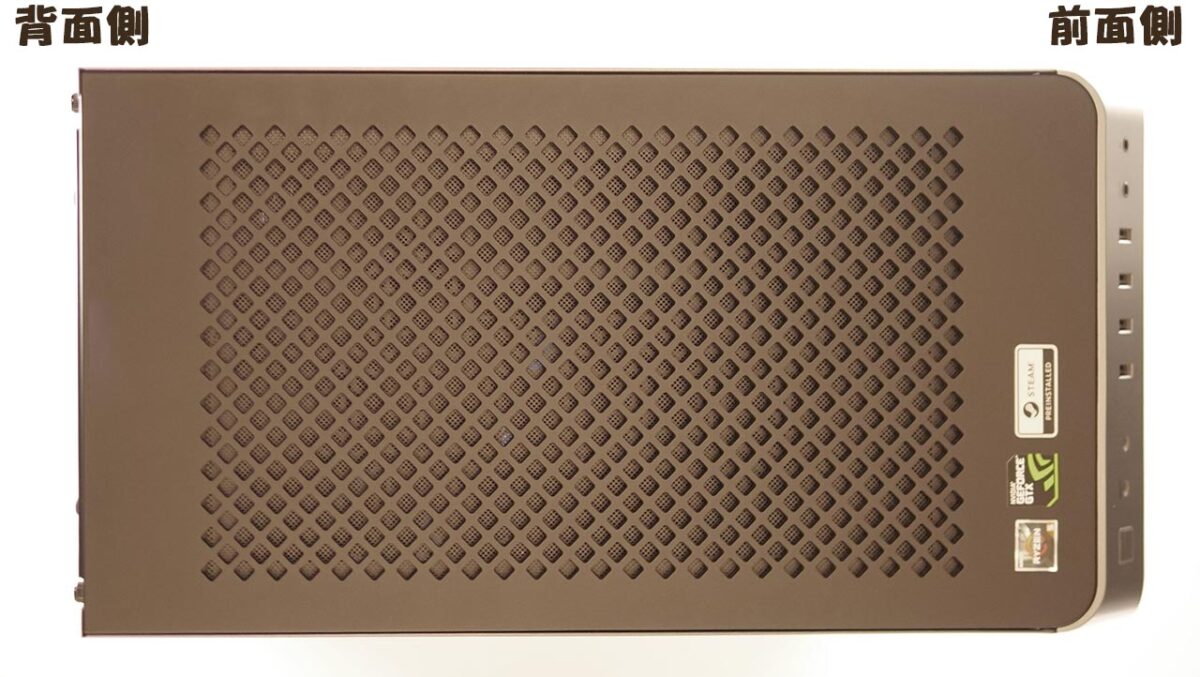
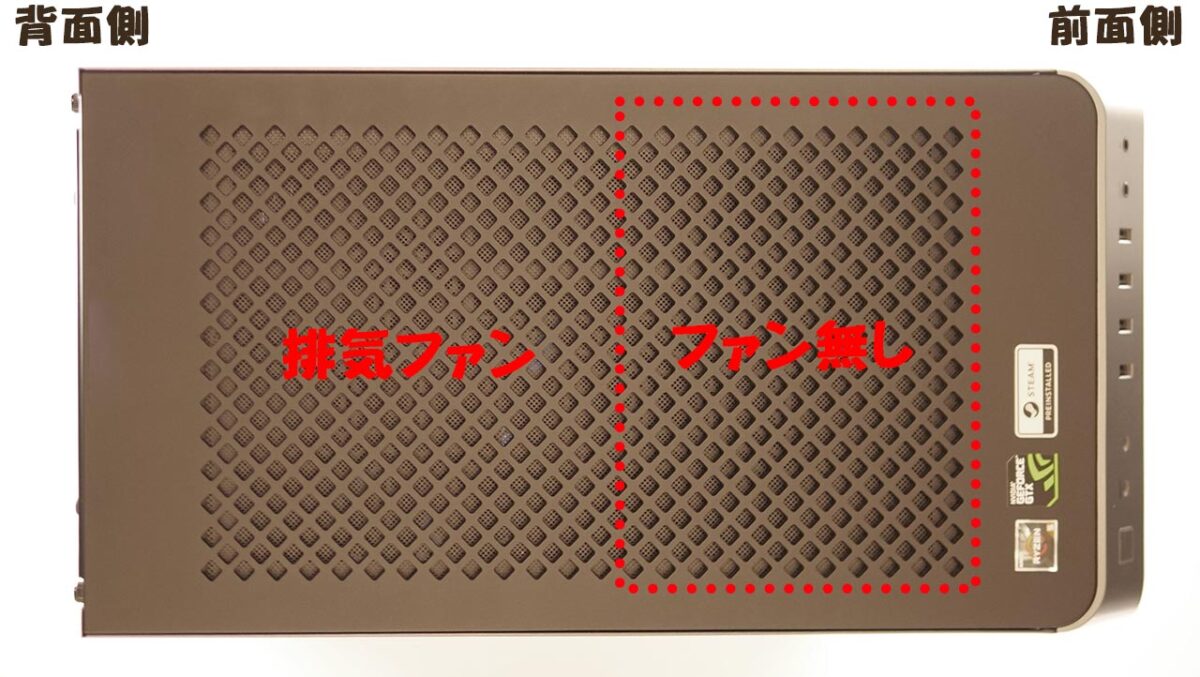
Looking at the mesh section on top from the inside, it looks like the photo below. The front half of this mesh area has no fan behind it at all, so setting something on top of that section should have little effect on cooling.
Rear
The back looks like a fairly ordinary tower PC.
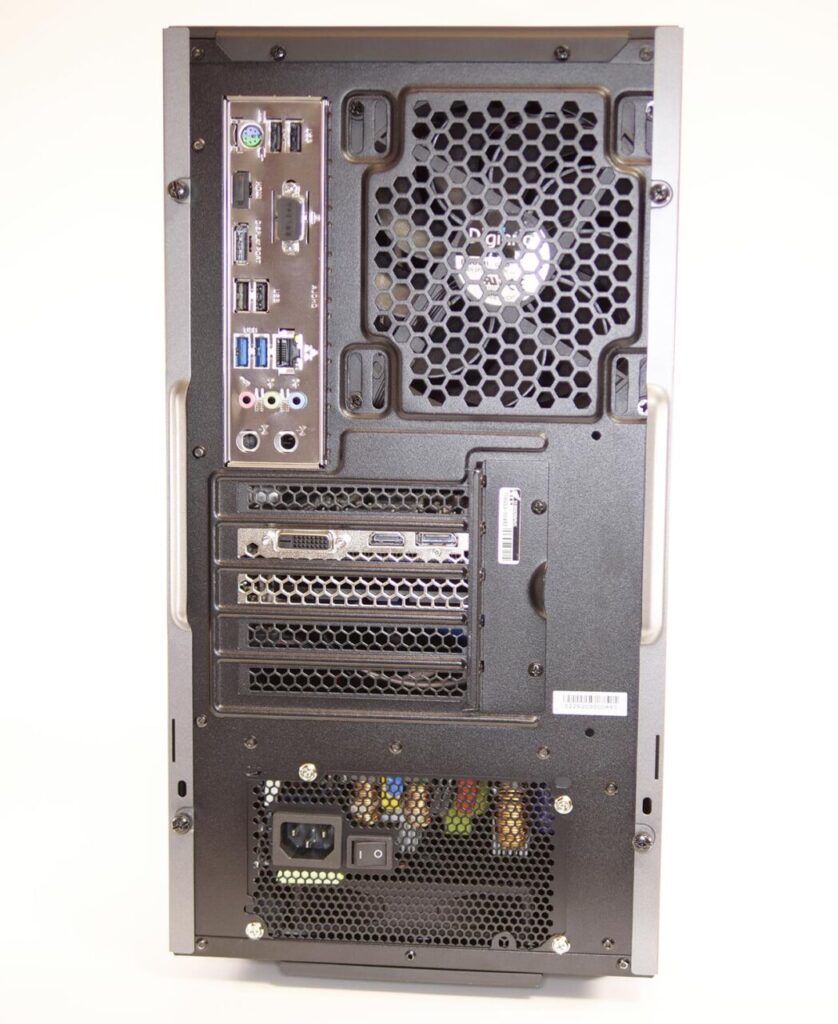
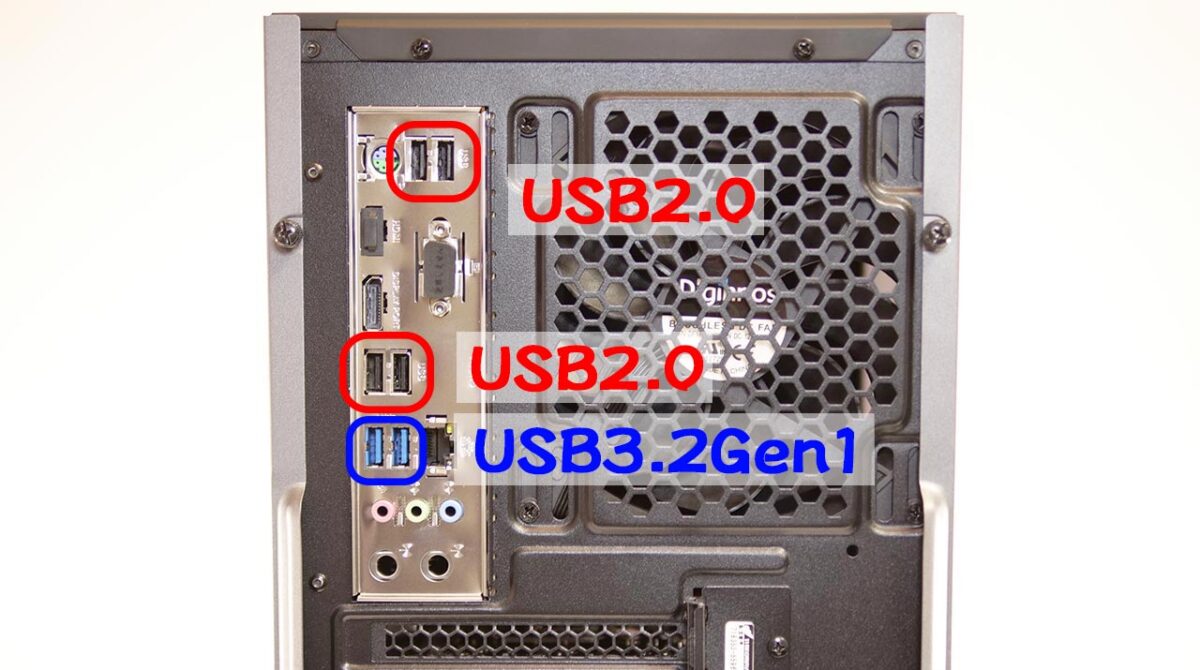
Interfaces are plentiful. Note that the four black USB ports are USB 2.0, so be careful if you want to plug in a device that needs faster throughput.
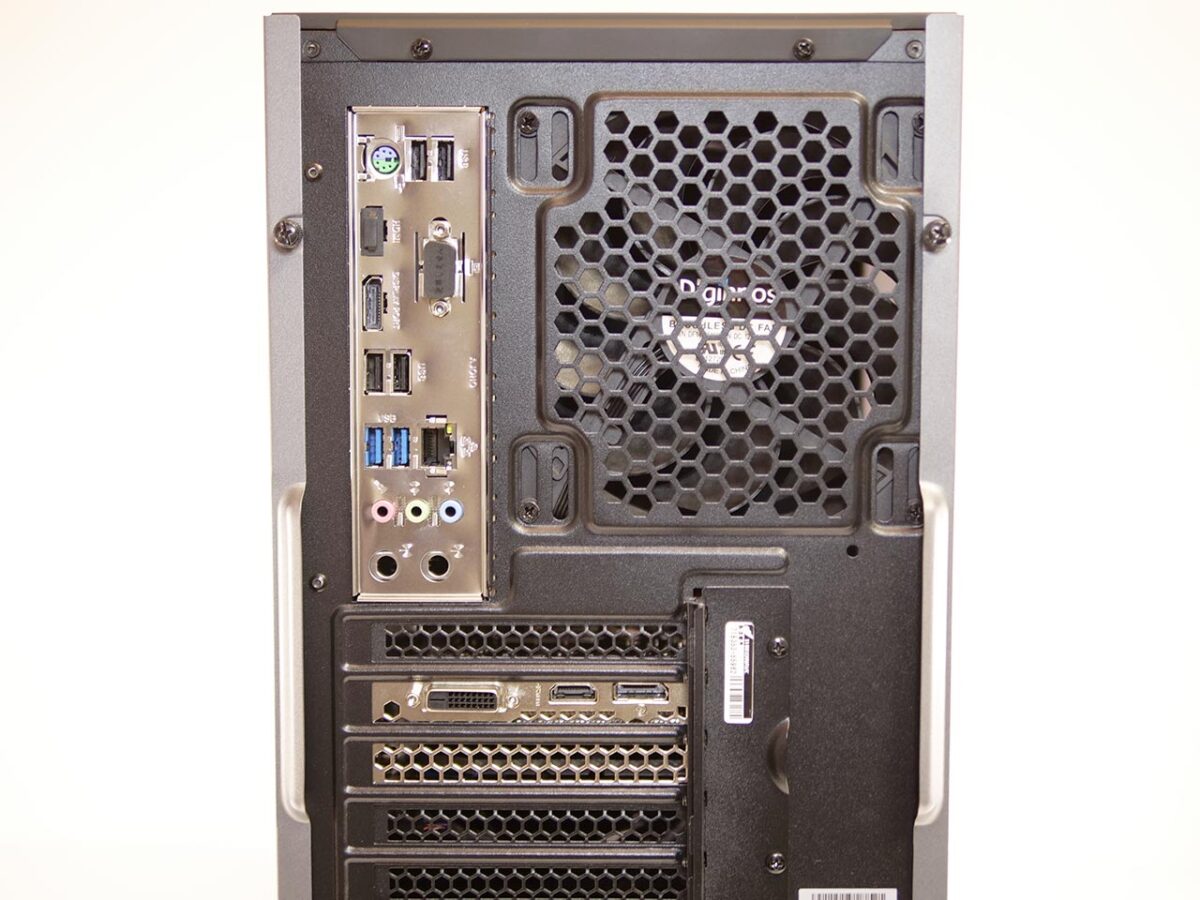
Rear interfaces
1. USB 2.0 x2
2. PS/2 port (keyboard/mouse)
3. DisplayPort (uses the CPU’s integrated GPU — better left unused)
4. USB 2.0 x2
5. USB 3.2 Gen2 Type-A x2
6. Gigabit LAN port
7. Audio ports x3
On the graphics card: DVI, DisplayPort, HDMI
Right and Left
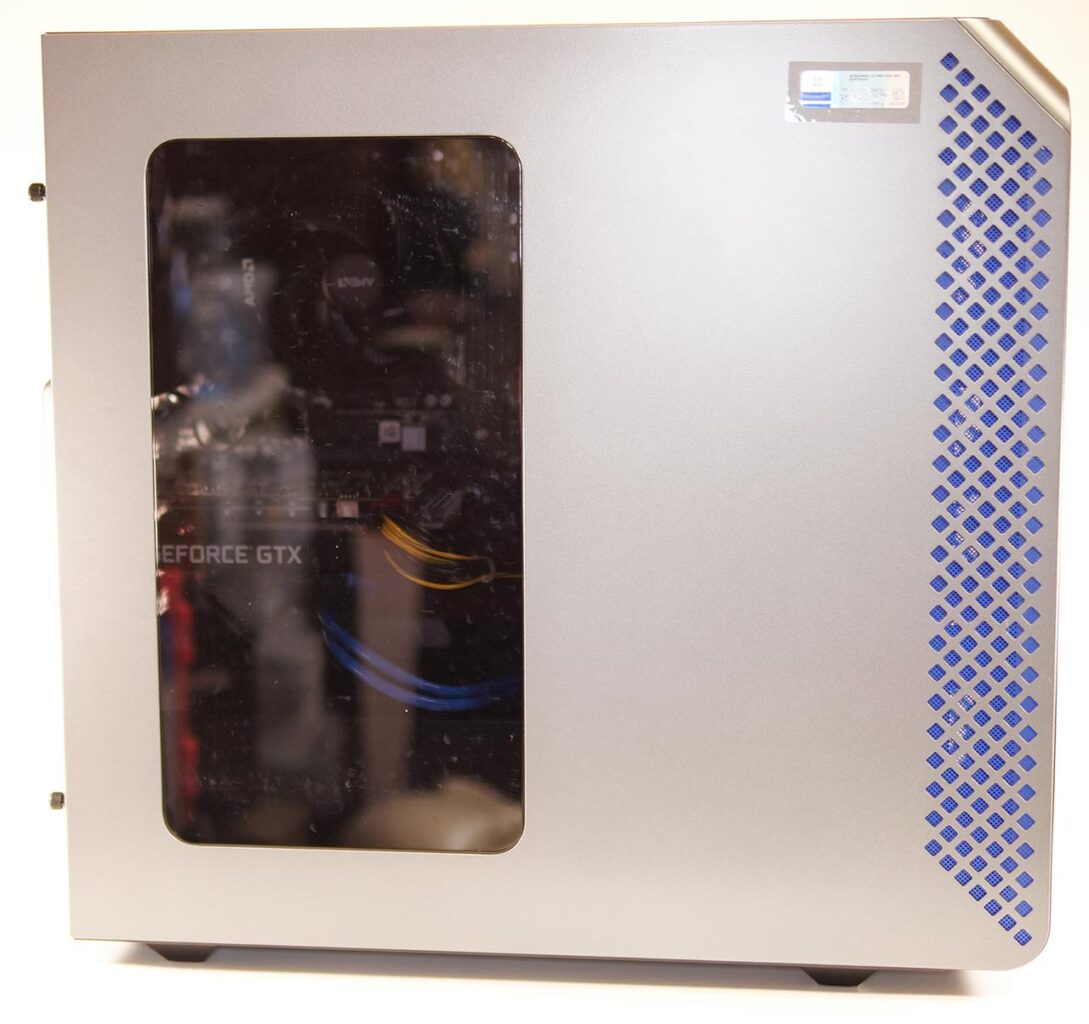
The right side has an acrylic panel. In this configuration nothing inside was lit up, but if you fit a graphics card with RGB lighting, that light would show through.
Side Intake Vents
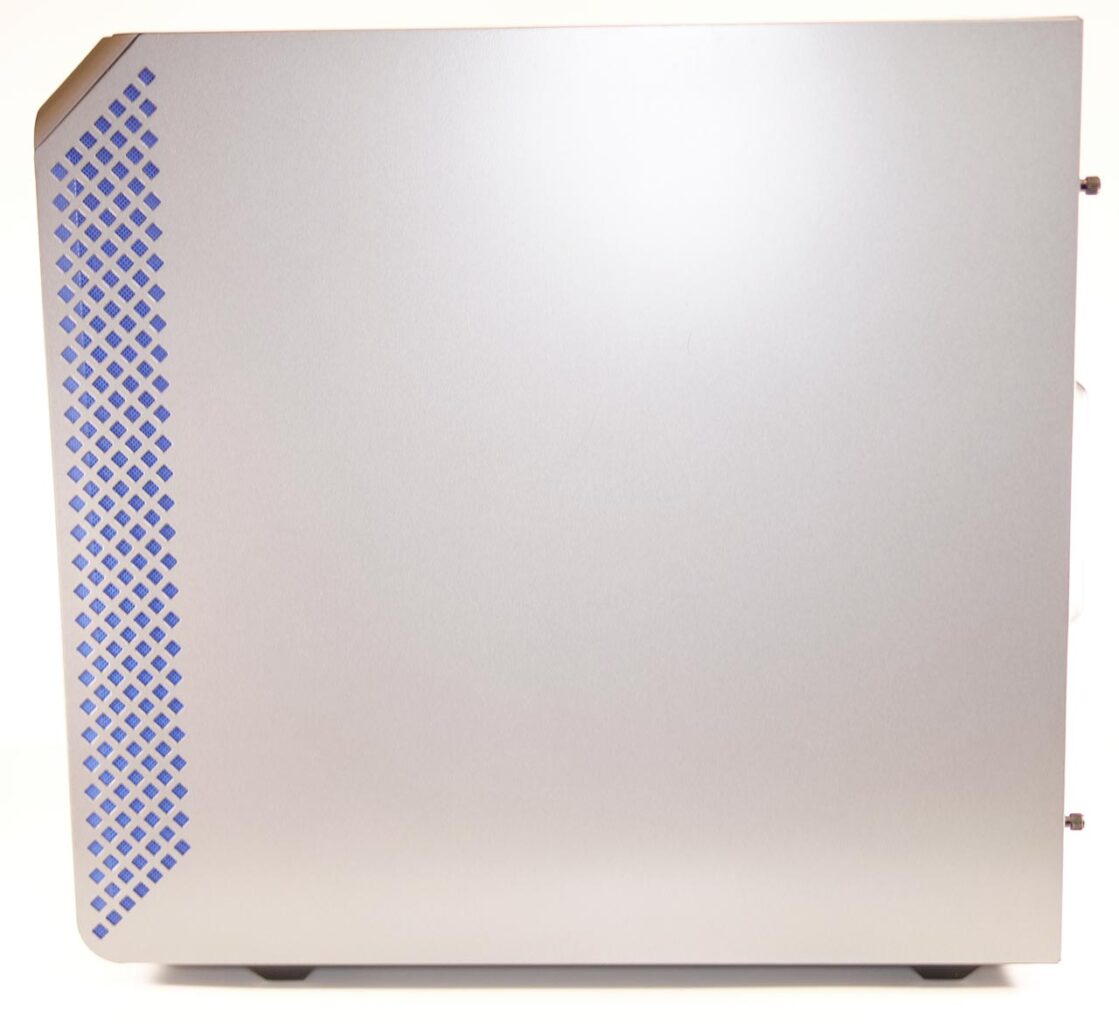
The most distinctive feature is the blue mesh panel toward the front on each side. Air is drawn in through this large intake area.
Air pulled in through the mesh on both the left and right sides first collects in the space at the front, then gets routed into the middle of the case.
Putting a large fan to good use here gives a structure that stays quiet while still cooling well.
Bottom
Large rubber feet sit at all four corners on the bottom. The power supply fan is mounted toward the back of the case.
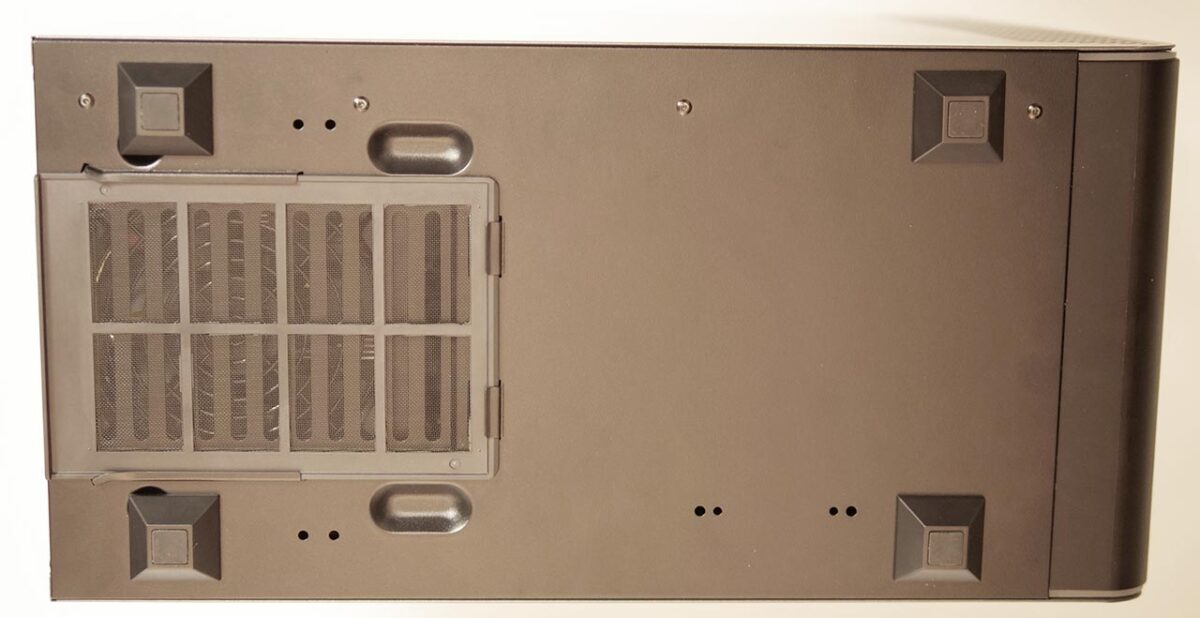
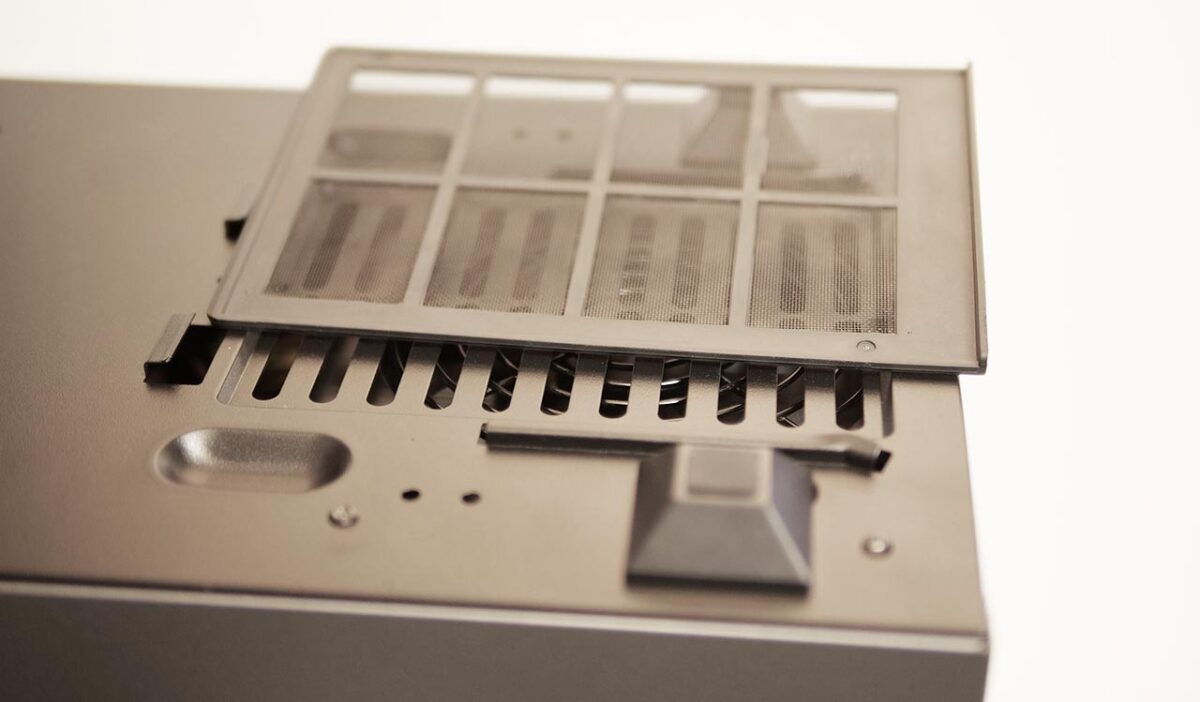
The mesh covering the power-supply fan area can be removed. It is nice that the bottom intake vent — the one that tends to collect dust — is the easy one to take off and clean.
USB Power Delivery
If you enjoy VR with an Oculus Quest or Quest 2 over Oculus Link, insufficient USB power delivery means the headset’s own battery keeps draining while you play.
I connected an Oculus Quest 2 to the GALLERIA RM5R-G60S and measured the current flowing through the port.
Note that the GALLERIA RM5R-G60S has no USB Type-C port, so you will need either a conversion adapter like the one below, or a USB Type-A-to-Type-C cable.
USB Port Layout
Every USB port on the front of the GALLERIA RM5R-G60S is USB 3.2 Gen1 Type-A.
The back panel is loaded with ports, but the topmost and bottommost ones are USB 2.0, so reserve those for devices that do not need fast data transfer.
Front: USB 3.2 Gen1 Type-A x4
Every one of the front USB ports supplies about 0.7A of current, regardless of which one you use. During Oculus Link sessions, the headset’s battery should drain gradually.

Rear: USB 3.2 Gen1 Type-A
The blue USB ports on the back behave the same way, supplying about 0.7A.
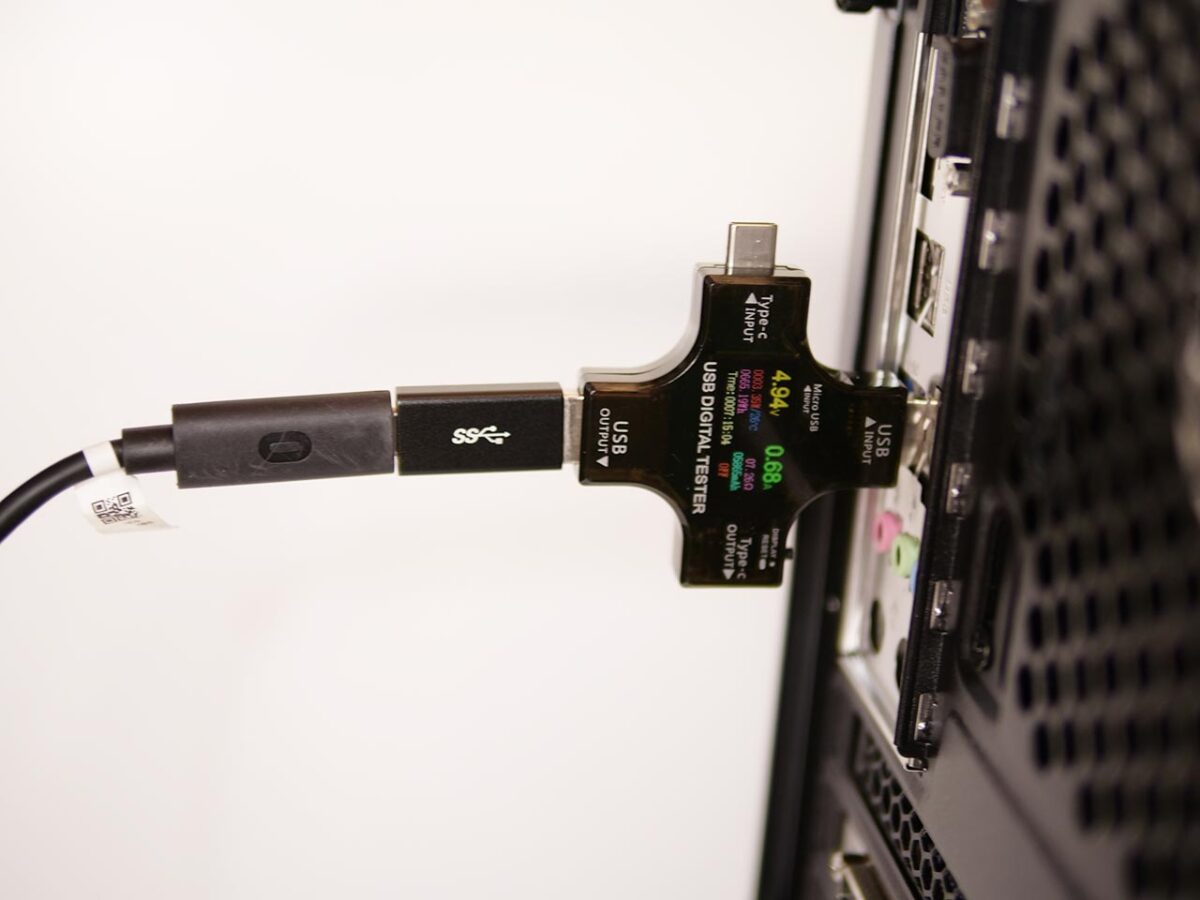
Again, expect the headset’s battery to drain gradually during Oculus Link sessions.
USB Ports: The Takeaway
The GALLERIA RM5R-G60S has no USB Type-C port. That means Oculus Link runs over USB 3.2 Type-A, and current delivery is the same no matter which port you pick. Expect the Oculus Quest 2’s battery to drain gradually over the course of an Oculus Link session.
Which port should you use for an Oculus Quest or Oculus Quest 2? The USB Type-A ports on the front panel of the GALLERIA RM5R-G60S are the best choice, for both convenience and power delivery.
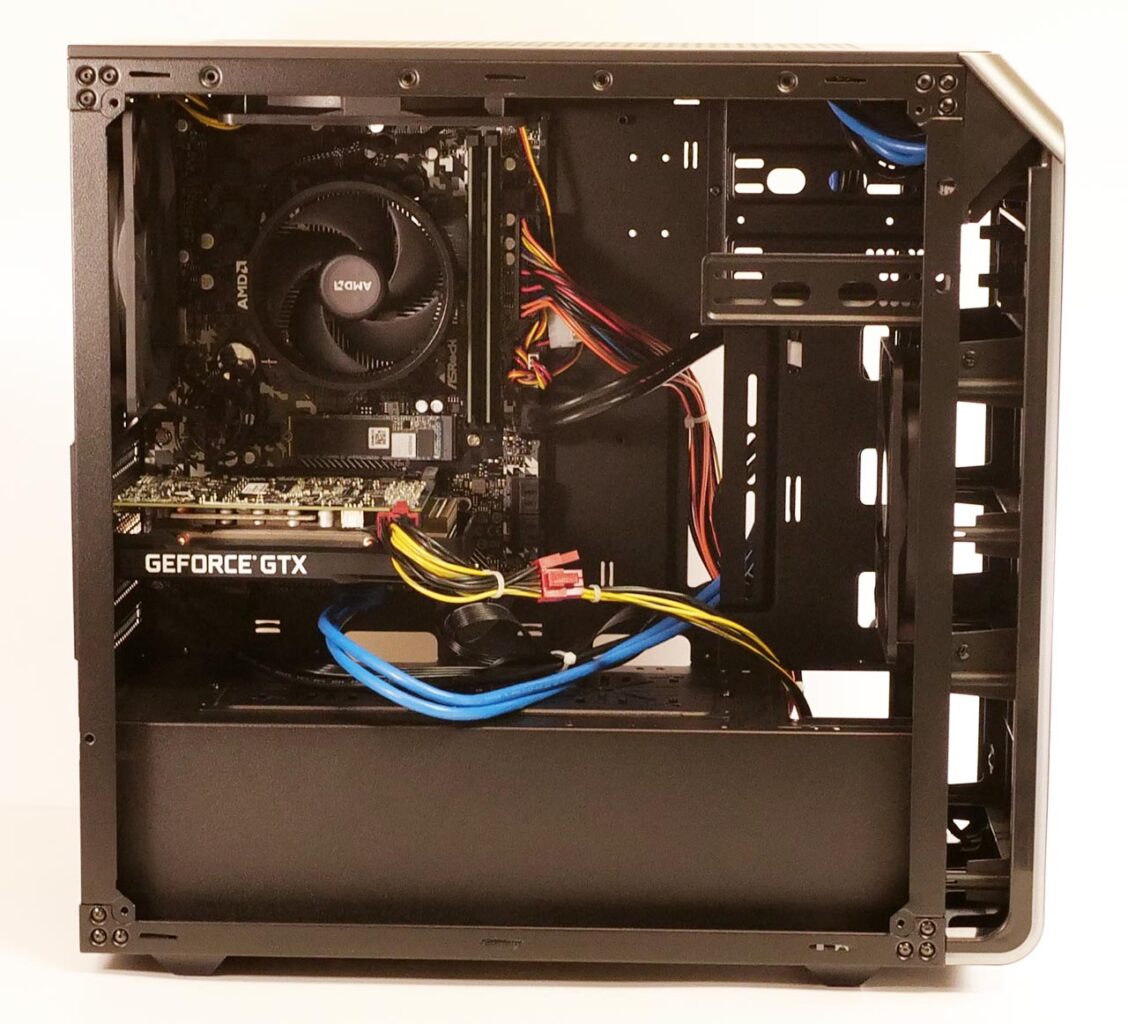
Inside, Left Side (Motherboard Side)
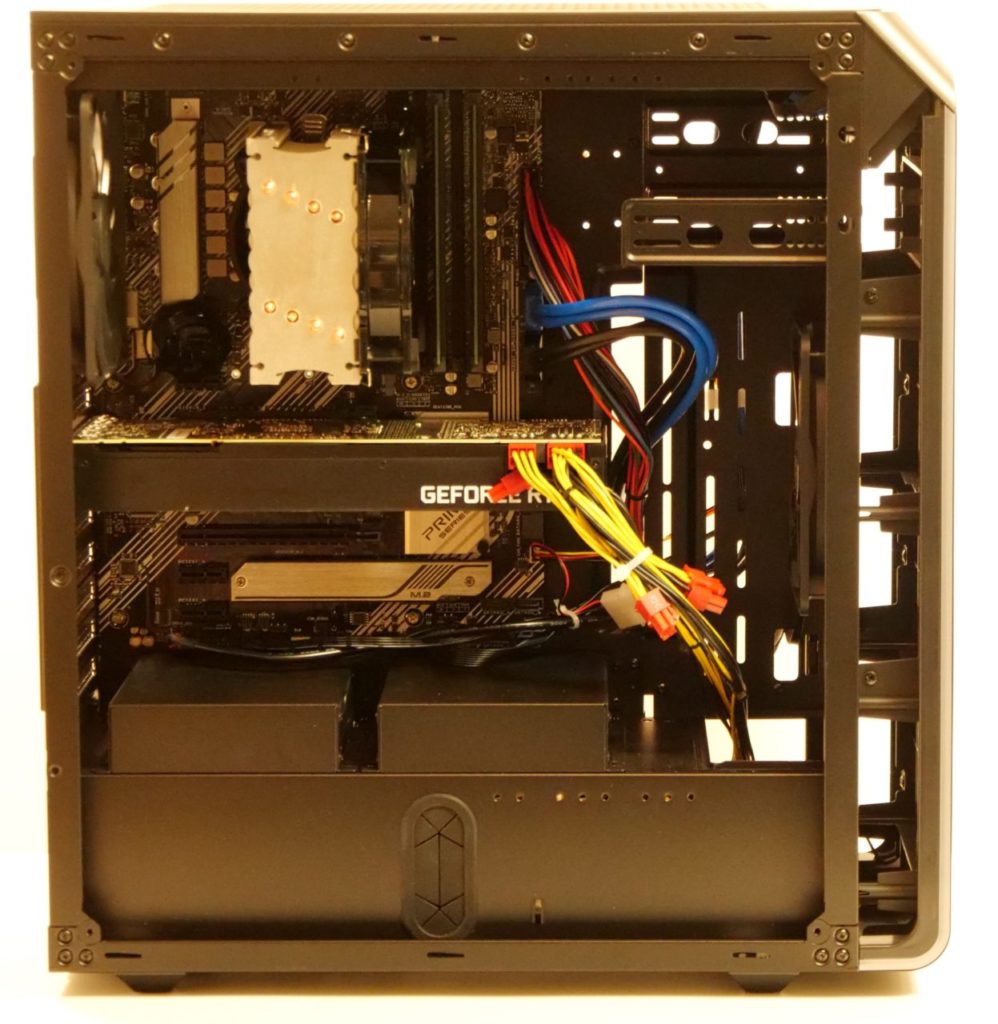
The motherboard is labeled “ASRock A520M TW" — essentially an OEM version in the A520M family.
- DDR4 memory slots: 2 (both in use with 8GB each, 0 free)
- PCI Express x16: 1 (in use for the graphics card, 0 free)
- PCI Express x1: 1 (1 free)
- M.2 (Key E): 1 (1 free)
- M.2: 1 (in use for the SSD, 0 free)
- 3.5″ bays above the power supply (for HDDs): 2 (2 free)
- 2.5″ bays behind the right-side cover (for HDDs): 2 (2 free)
- 5.25″ bay on the front panel (for DVD/Blu-ray drives): 1 (1 free)
Expandability covers the basics adequately.
Cooling Around the CPU
The CPU cooler is AMD’s stock unit.
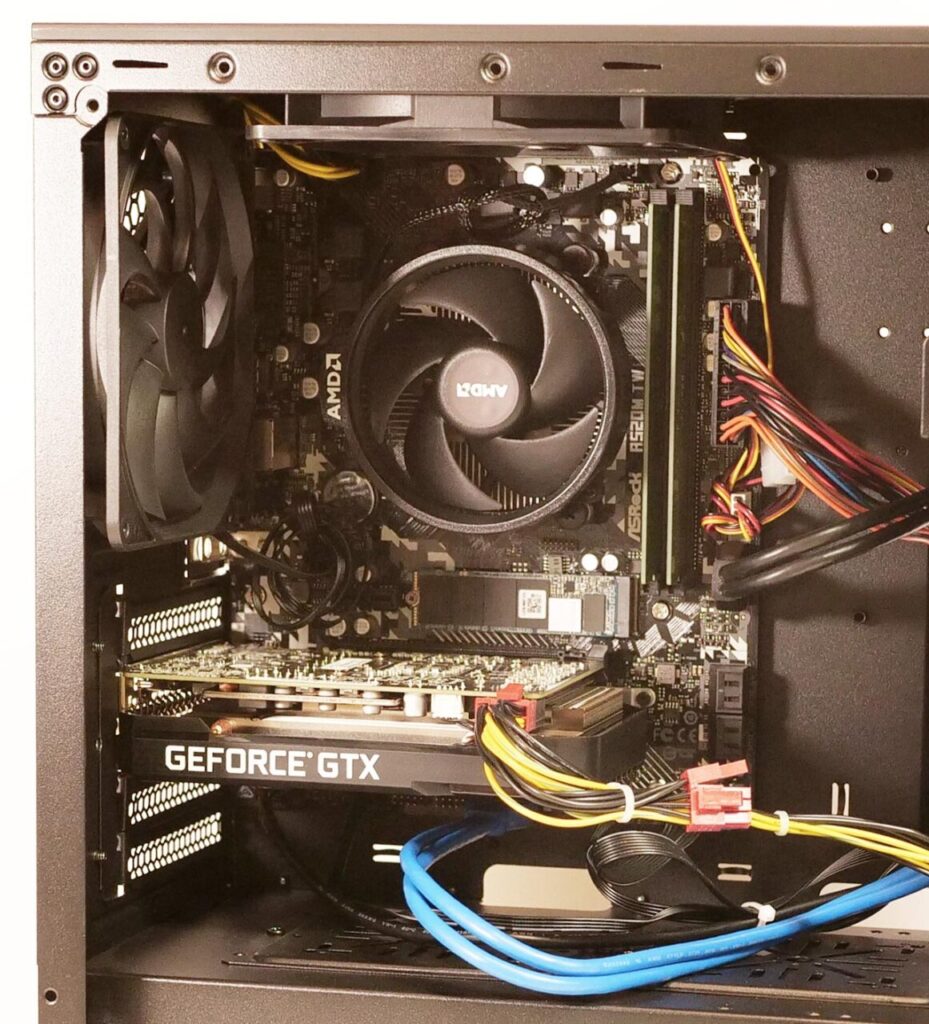
This is perfectly workable as it is, but given how the exhaust airflow is routed, a tower-style cooler with a vertically mounted fan might dissipate heat somewhat more efficiently.
Both memory slots are populated.
Graphics Card and PCIe Slots
Below the CPU sits a GeForce GTX 1660 SUPER — a single-fan model.
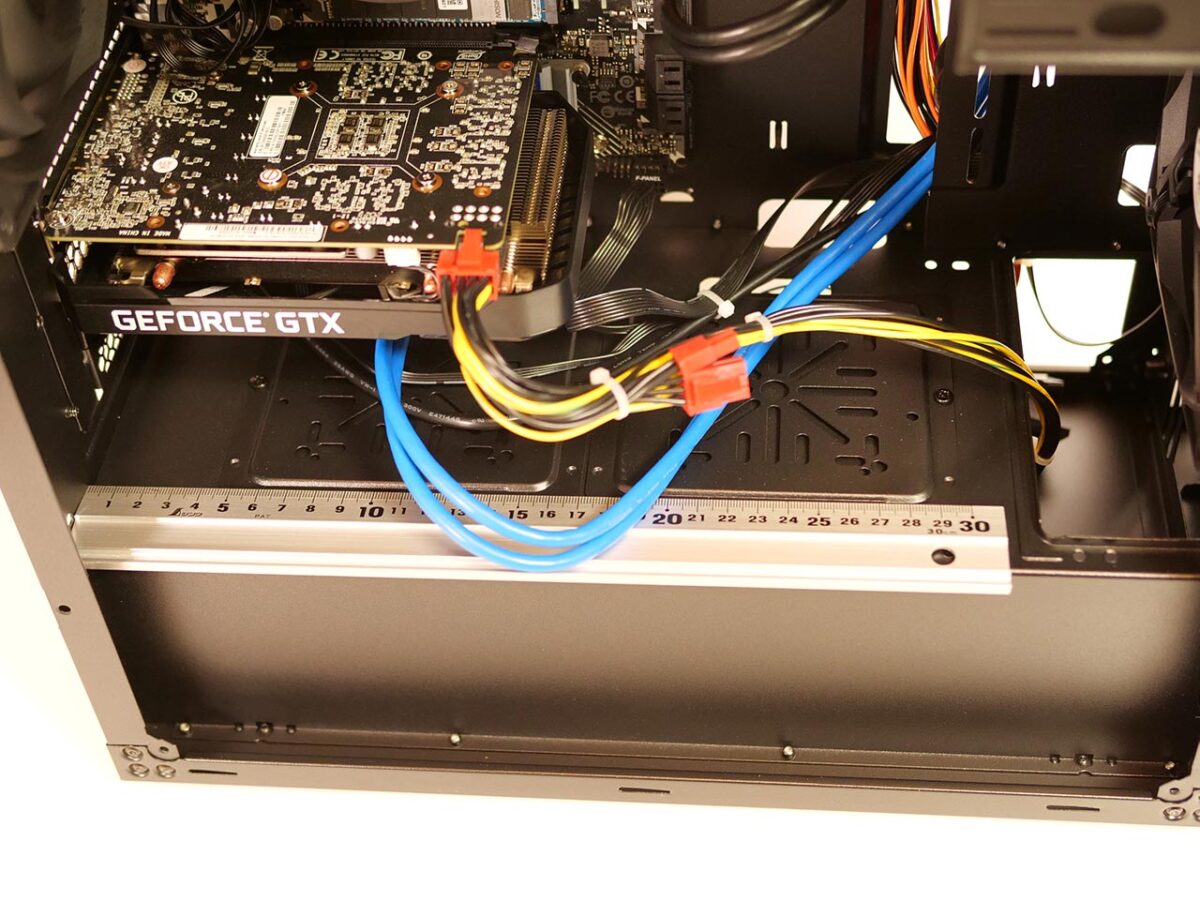
I laid a 30cm ruler across the photo above. Even a graphics card 30cm deep would fit here with room to spare — this is a well-designed case.
You can also see two 6+2-pin auxiliary power connectors. There is plenty of clearance to swap the graphics card easily.
That said, the GALLERIA RM5R-G60S’s power supply is rated at 550W, which does not leave much headroom. If you plan to swap in a beefier graphics card, you should probably plan on replacing the power supply as well.
M.2 Storage
Below the graphics card is a 512GB SSD, with no heatsink attached.
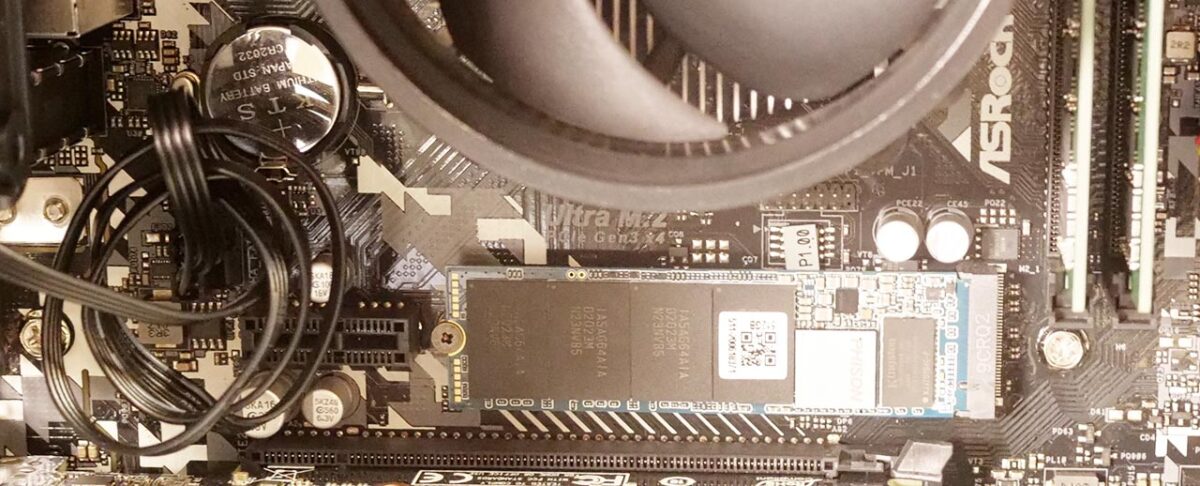
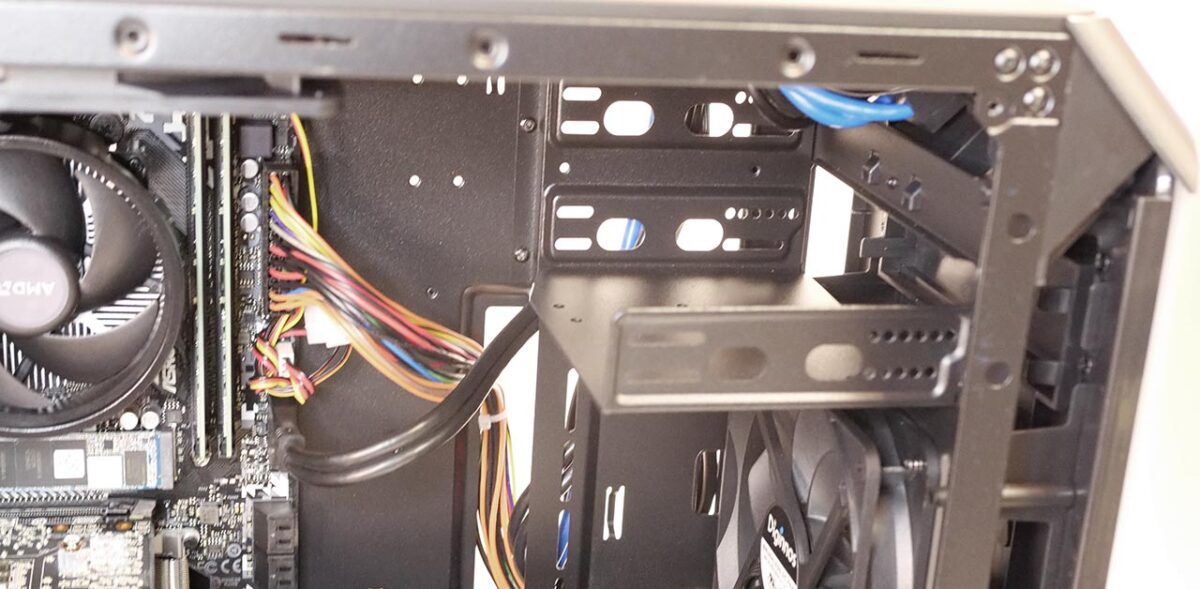
5.25″ Bay
On the front-right side of the motherboard there is one 5.25″ bay for an optical drive.
3.5″ Bays
Inside the red box in the photo below are two cover-like panels.
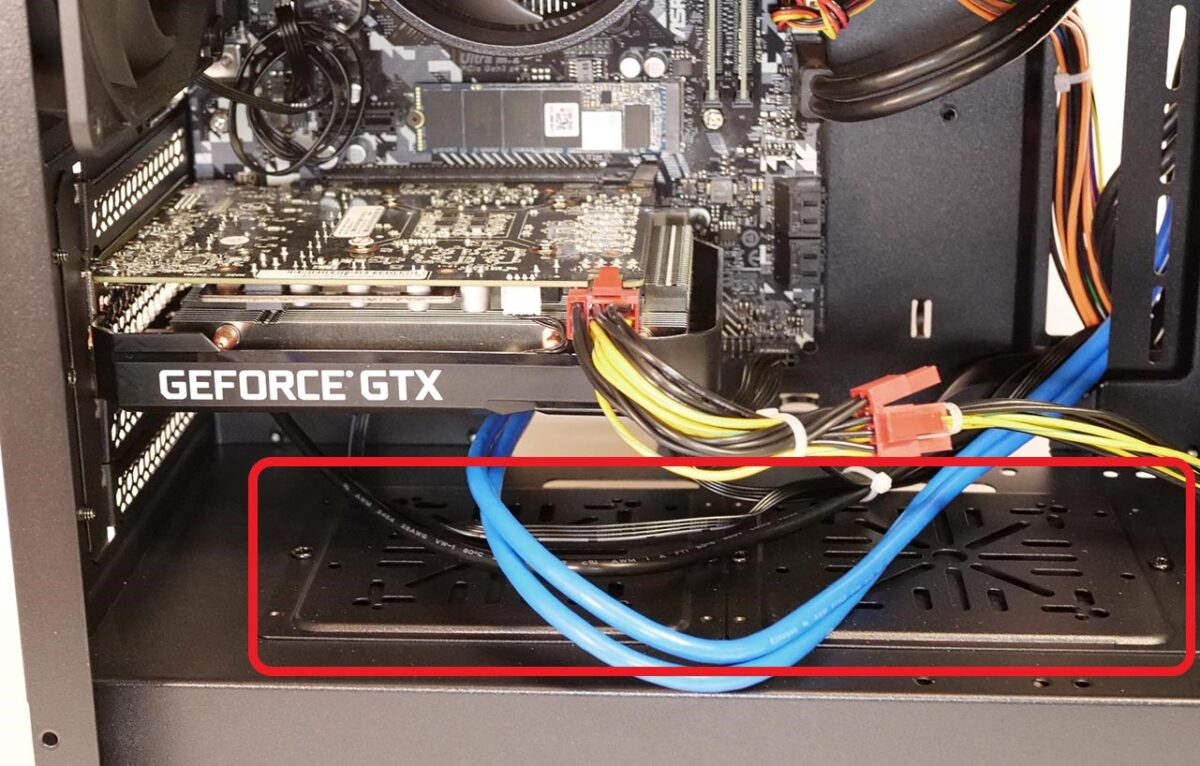
Remove these and you can mount 3.5″ HDDs, or 2.5″ HDDs and SSDs.
Inside, Right Side (Behind the Motherboard)
On the right side, the power supply sits at the bottom, with two 2.5″ bays above it.
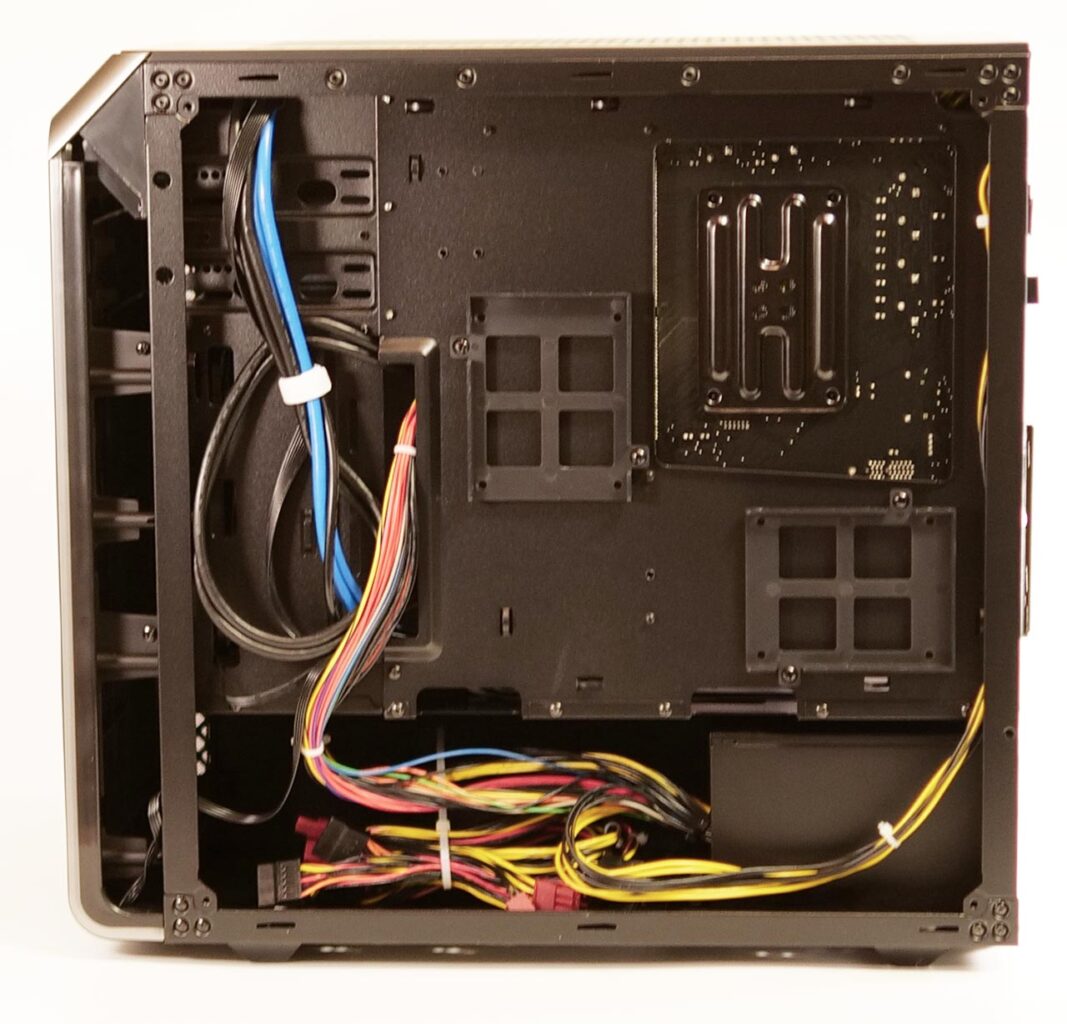
The back of the CPU socket area is also easy to access.
Lighting
When you power the machine on, the power button and the LED strip around the front edge light up.
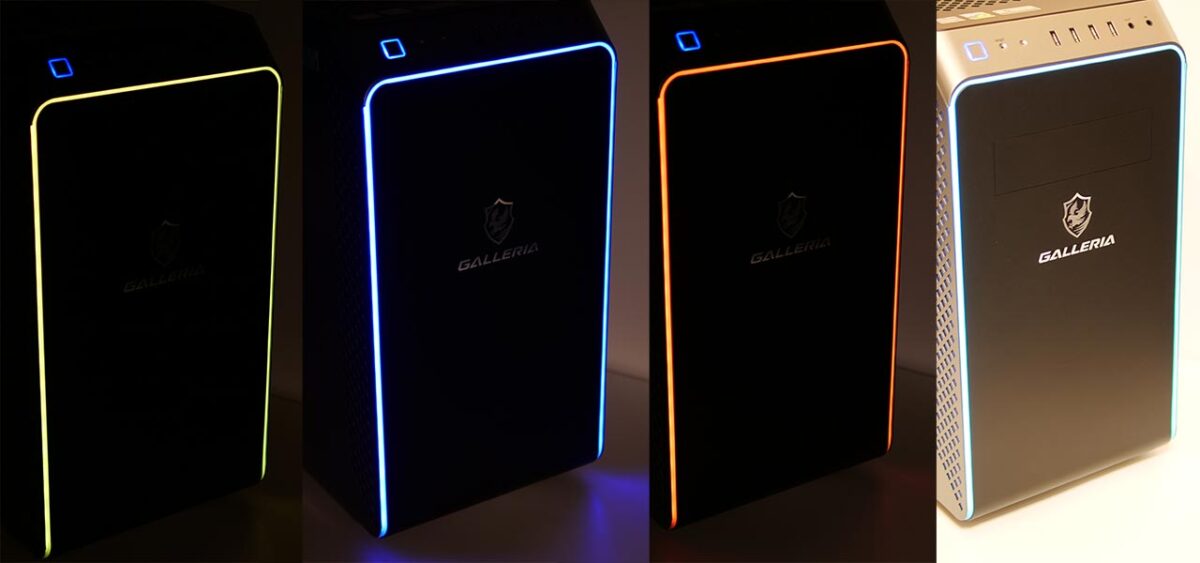
You can configure how the LEDs light up from the motherboard vendor’s companion app.
The GALLERIA RM5R-G60S uses an ASRock motherboard, so lighting is configured through ASRock’s own app, “Polychrome RGB."
VR Performance Test Results
Against the Recommended Oculus Spec
I compared this against a PC built to the minimum recommended Oculus GPU spec:
- CPU: Intel Core i5-4590
- GPU: GeForce GTX 1060 6GB
- Memory: 8GB
The figures below are calculated from the measured results of the GTX 1660 SUPER model tested here.
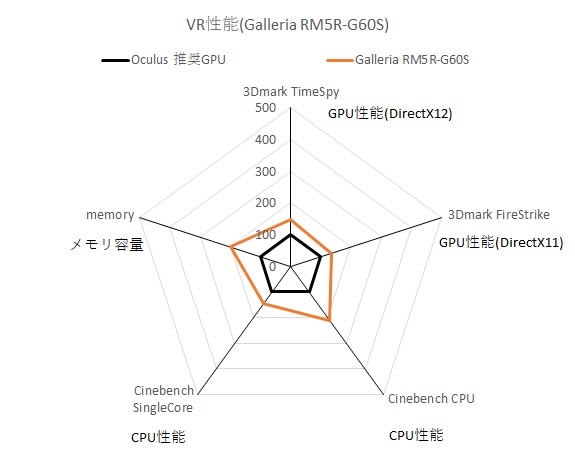
*GALLERIA RM5R-G60S performance, with the Oculus recommended spec set to 100
3Dmark TimeSpy shows DirectX 12 rendering performance, and 3Dmark FireStrike shows VR rendering performance using richer graphics — both scored against the recommended GTX 1060 6GB desktop set to 100. Cinebench CPU and Cinebench SingleCore show overall and per-core CPU compute power against the recommended Core i5-4590 set to 100. The memory score shows RAM capacity against the recommended 8GB set to 100.
The GPU in the unit I borrowed is a GeForce GTX 1660 SUPER. GPU performance comes in at roughly 1.5x the Oculus recommended spec, and CPU performance at roughly 2x — more than enough headroom to enjoy VR.
Resolution Against Frame Rate
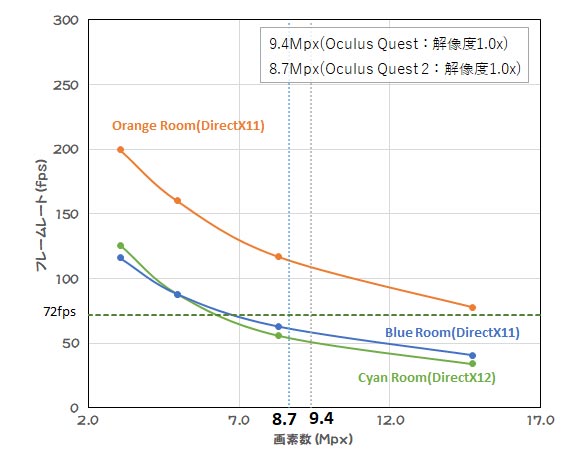
I ran VRMark across a range of resolutions. The horizontal axis is pixel count; the vertical axis is frame rate.
VRMark shows PC’s rendering fps. If this fps falls short of the headset’s own refresh rate, intermediate frames may need to be interpolated. For apps with little head movement, targeting half the headset’s refresh rate can also work out fine.
In VRMark, Blue Room and Cyan Room both drop below 72fps at the Oculus Quest 2’s “1.0x" rendering resolution (roughly 8.7 megapixels). Lightweight apps run smoothly at that resolution, but expect frame drops once you push an app’s quality settings higher.
GALLERIA RM5R-G60S VR performance: with a GeForce GTX 1660 SUPER on board, it runs at roughly 1.5x the Oculus recommended spec. This is a PC that lets you genuinely enjoy VR.
VR Score and Cost Performance
| Item | Score |
|---|---|
| VR score Higher is better | 150 |
| VR cost performance Higher means better value | 158* |
Overall PC Performance
Here are the results from the PCMark10 benchmark app, showing how the GALLERIA RM5R-G60S performs for non-gaming use.
I compared this against a desktop PC built around today’s popular CPU choice, the “Intel Core i5-10400."
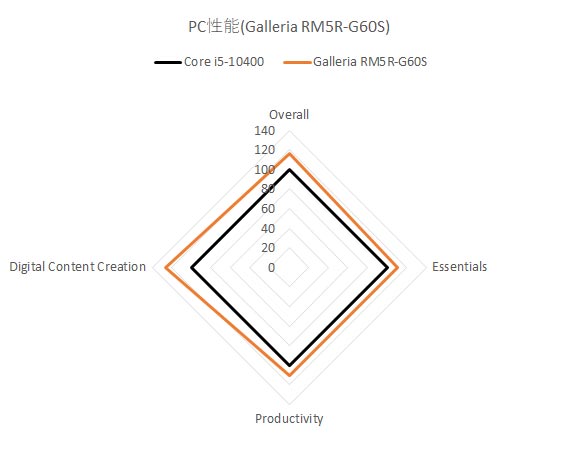
*GALLERIA RM5R-G60S performance, with the Intel Core i5-10400 benchmark result set to 100
PCMark10’s “Overall" reflects total PC performance. “Essentials" reflects everyday tasks like launching apps and browsing. “Productivity" reflects office-suite work. “Digital Content Creation" reflects creative work — photo, video, and 3D graphics.
GALLERIA RM5R-G60S baseline performance: it runs roughly 10% ahead of a mainstream Core i5 desktop PC, and it is particularly strong in creative-workload performance.
Standard Benchmark Results
Including the figures above, here are the standard benchmark results side by side. For VR use, this is more than enough performance.
| Benchmark | Score |
|---|---|
| SteamVR Performance Test | Average fidelity: 10.8 (Very high) Frames tested: 11,823 |
| VRMARK | Orange Room: 9,151 Cyan Room: 5,772 Blue Room: 1,867 |
| 3DMARK | Time Spy: 5,788 Fire Strike: 13,492 |
| PCMARK10 | OVERALL: 5,578 Essentials: 8,708 Productivity: 7,331 Digital Content Creation: 7,380 |
| CINEBENCH R20 | CPU: 2,587 Single Core: 464 |
| FINAL FANTASY XV | High quality: 6,141 (Comfortable) |
| FINAL FANTASY XIV | Maximum quality: 12,308 (Extremely comfortable) |
Power Draw and Noise
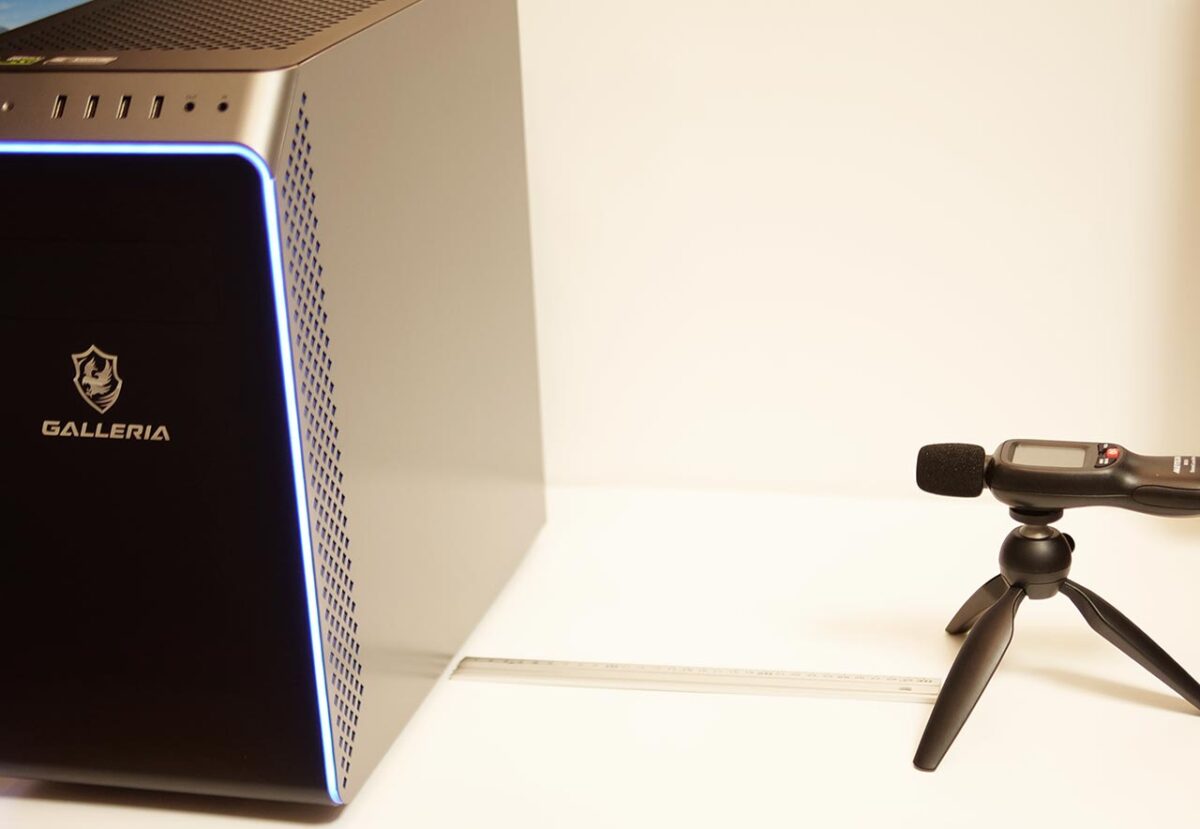
For reference, I measured power draw and noise. With such a large fan on board, this stays quite quiet even under heavy load.
| State | Power draw | Noise |
|---|---|---|
| Powered off | 0W | 32dB |
| Idle | 50W | 36dB |
| Under load (3DMark) | 186W | 44dB |
If you are absorbed in VR, the fan noise is unlikely to register at all.
The GALLERIA RM5R-G60S also ships with AMD’s stock CPU cooler. Swap that for a quieter aftermarket cooler and it would likely get even quieter still.
Measurement setup: Power draw was measured with a plug-in power meter at the outlet. Noise was measured with a sound-level meter positioned 15cm above the center of the PC and 30cm off to its right side.
Trying Various Headsets
To keep an eye on refresh rate, I launched Oculus-series apps through SteamVR as well.
Launching Oculus apps from SteamVR requires a compatibility layer called “Revive."
Setting up Revive is beyond the scope of this article, but it is a well-documented, widely used tool for running Oculus-exclusive titles through SteamVR.
Oculus Rift S
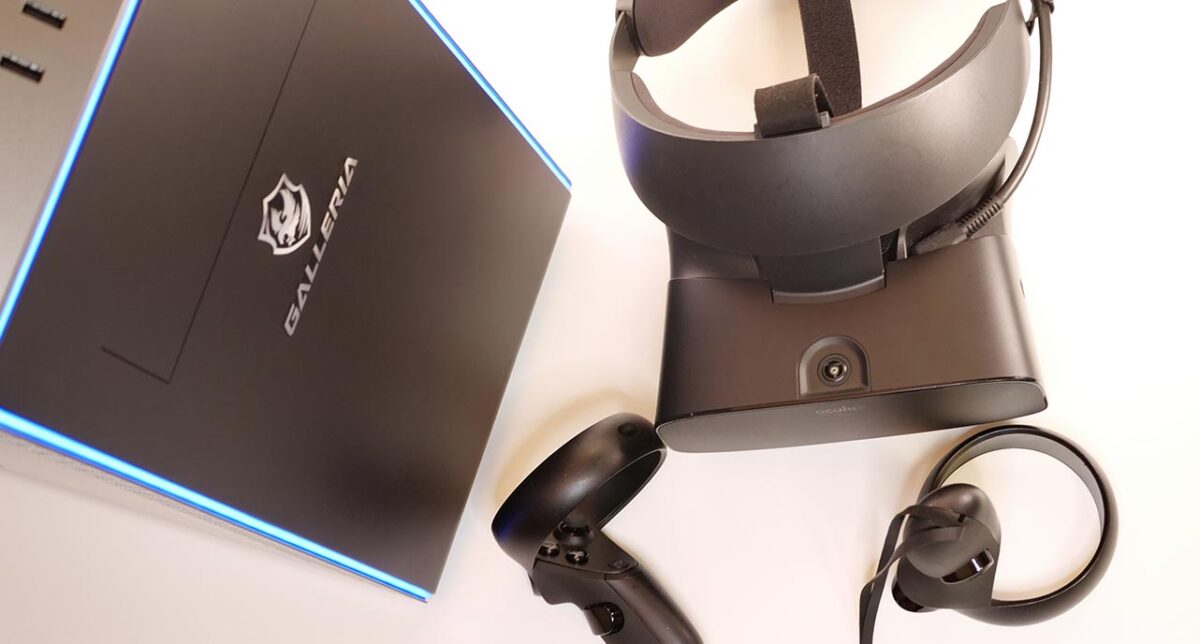
To use an Oculus Rift S with the GALLERIA RM5R-G60S, you can just use the DisplayPort and USB ports on the back of the PC, keeping the cabling tidy.
Refresh Rate Results
The Oculus Rift S refreshes at 80Hz. Clearing this figure is a good sign the PC has enough rendering power.
Oculus Rift S (Quality priority) x GALLERIA RM5R-G60S
Every app I tested here cleared 80fps.
Can the GALLERIA RM5R-G60S run an Oculus Rift S? Yes, with plenty of headroom to spare — the Oculus Rift S runs into no problems here.
Oculus Quest
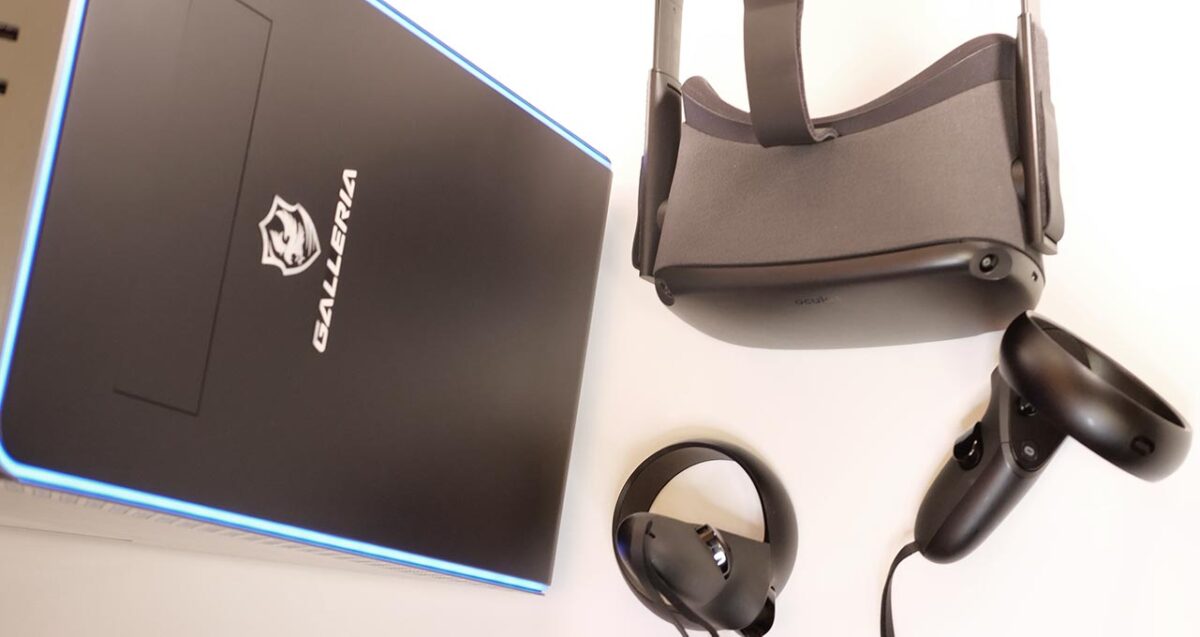
The GALLERIA RM5R-G60S has a USB 3.2 port on the front. Using a USB Type-C adapter with it makes the cable routing much easier to manage.
Refresh Rate Results
The Oculus Quest refreshes at 72Hz. Clearing this figure is a good sign the PC has enough rendering power.
Oculus Quest (resolution 1.0x) x GALLERIA RM5R-G60S
The very heavy app Asgard’s Wrath drops frames once its in-app quality is set to “high." At the “easy" quality setting, though, it holds a steady 72fps.
Can the GALLERIA RM5R-G60S run an Oculus Quest? Yes, comfortably. For the Oculus Quest, it is worth keeping app quality settings modest.
Oculus Quest 2
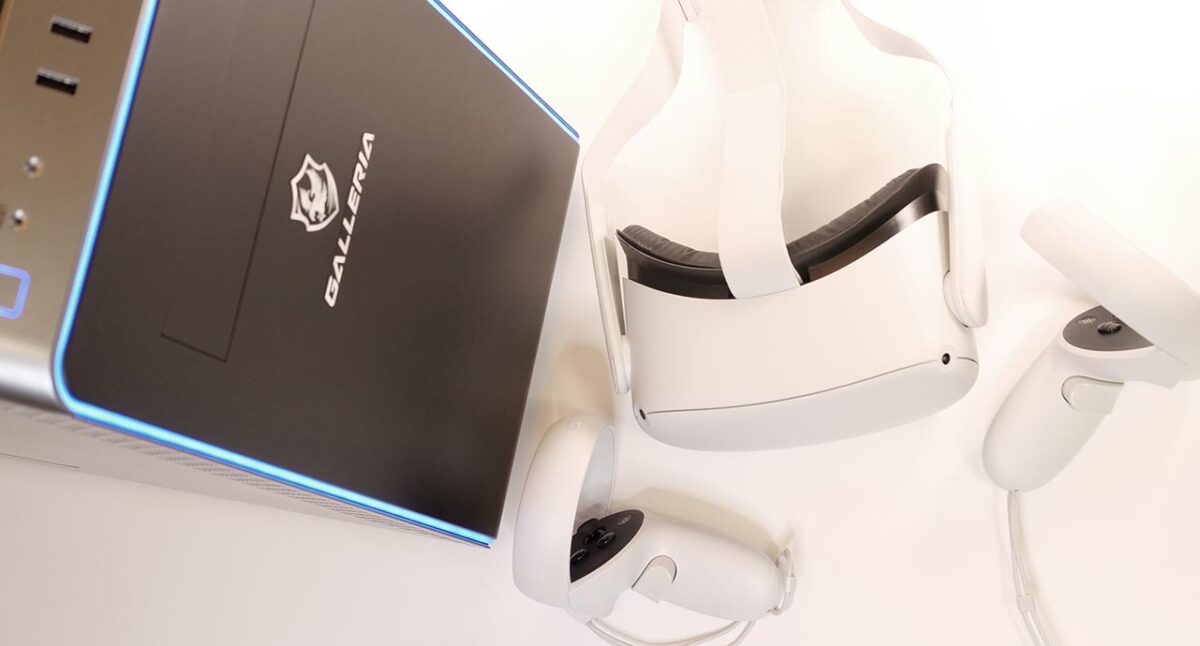
The GALLERIA RM5R-G60S has a USB 3.2 port on the front. Using a USB Type-C adapter with it makes the cable routing much easier to manage.
Refresh Rate Results
The Oculus Quest 2 refreshes at 72Hz or 90Hz. Clearing this figure is a good sign the PC has enough rendering power.
Oculus Quest 2 (resolution 1.0x) x GALLERIA RM5R-G60S
The very heavy app Asgard’s Wrath drops frames once its in-app quality is set to “high." At the “easy" quality setting, though, it holds a steady 72fps.
Sustaining the Oculus Quest 2’s 90Hz mode is a stretch here — 72Hz is the more realistic target.
Can the GALLERIA RM5R-G60S run an Oculus Quest 2? Yes, comfortably. That said, running at 72Hz with modest app quality settings is the more stable choice.
Vive Cosmos Elite
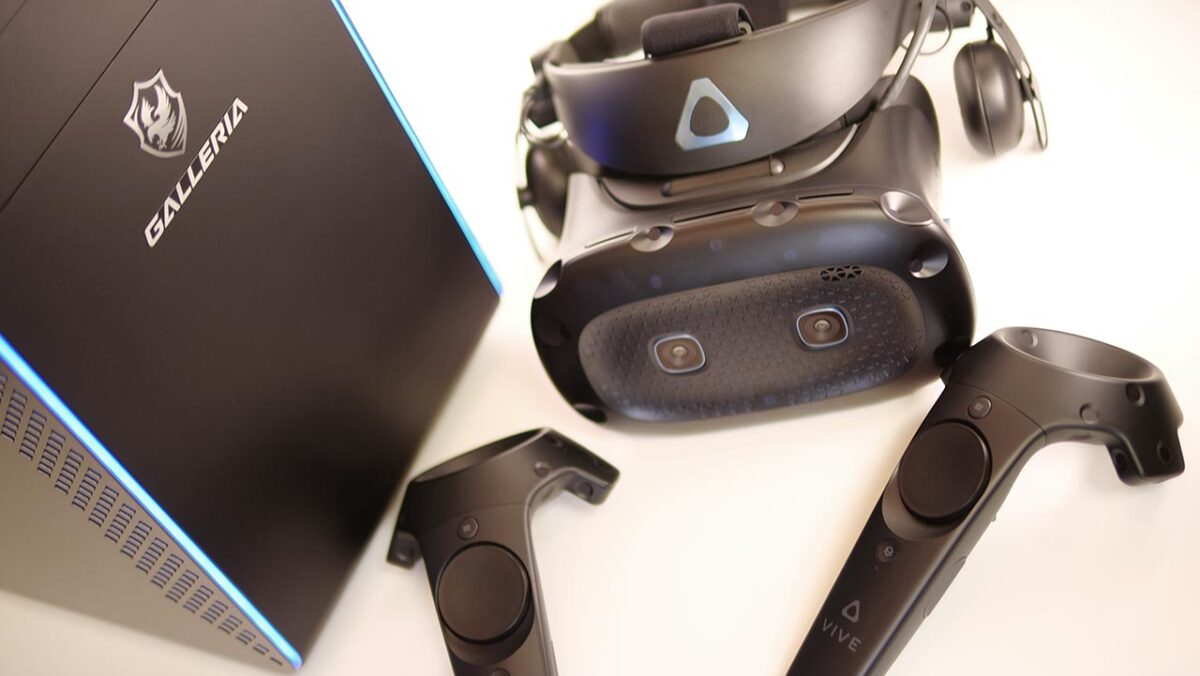
I tried the Vive Cosmos Elite, currently (as of November 2020) the highest-resolution headset in the Vive lineup.
Refresh Rate Results
The Vive Cosmos Elite refreshes at 90Hz. Clearing this figure is a good sign the PC has enough rendering power.
Vive Cosmos Elite x GALLERIA RM5R-G60S
Every heavy app here drops frames. The GTX 1660 SUPER also cannot make use of the Vive Cosmos Elite’s “motion smoothing" feature. Lowering the supersampling rate does get things running, but there is not quite enough GPU power to appreciate the Vive Cosmos Elite’s image quality at its best.
Can the GALLERIA RM5R-G60S run a Vive Cosmos Elite? Not really — it cannot bring out this headset’s full potential.
Pimax 8K Plus
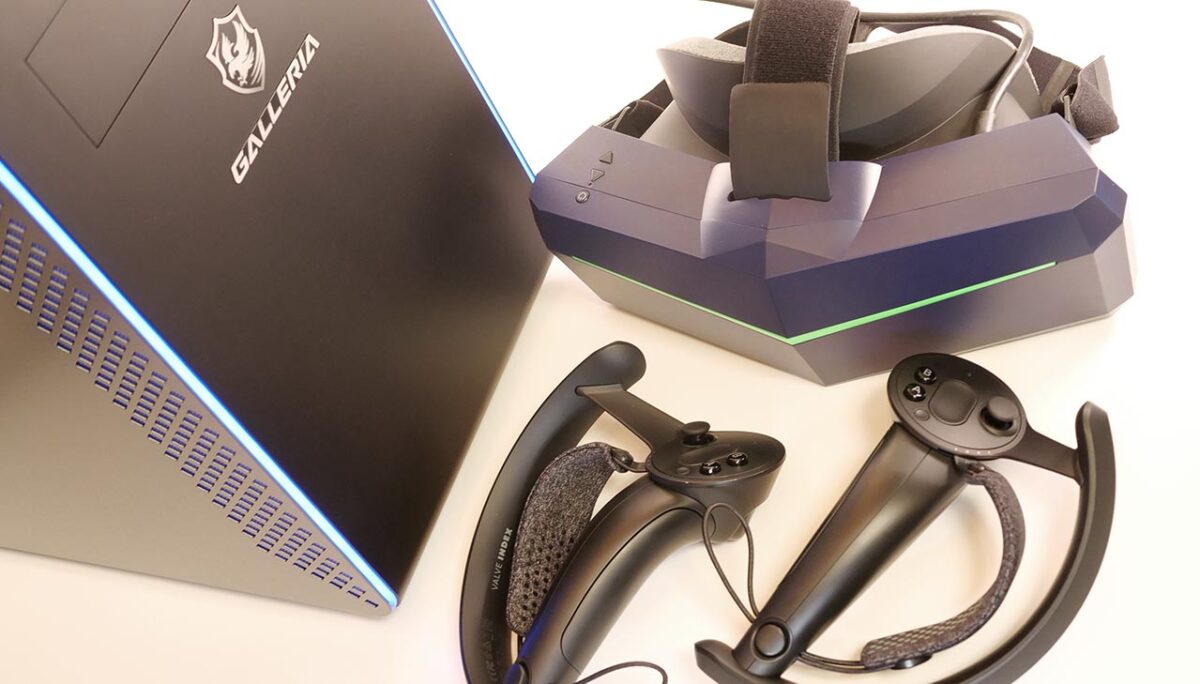
I also connected the Pimax 8K Plus, a high-end headset boasting a claimed 210-degree field of view.
Refresh Rate Results
The Pimax 8K Plus can refresh at 72Hz, 90Hz, or 110Hz. Clearing this figure is a good sign the PC has enough rendering power.
Pimax 8K Plus (Normal) x GALLERIA RM5R-G60S
On the Pimax 8K Plus, Half Life: Alyx holds a steady 72fps at the low-quality setting.
Asgard’s Wrath drops frames substantially here, raising a real risk of VR sickness. I would not recommend running it under this setup.
Can the GALLERIA RM5R-G60S run a Pimax 8K Plus? I would not recommend it.
What I Could Not Verify
This review reflects a single borrowed unit, so results could shift somewhat between individual units and after driver updates. I also limited testing to the handful of VR titles referenced above (Half Life: Alyx, Asgard’s Wrath, and similar benchmark apps) — frame rates in other titles are not guaranteed to follow the same pattern.
In Summary: A Well-Rounded, Budget-Friendly VR-Ready Desktop
I have gone through the mini-tower gaming PC “GALLERIA RM5R-G60S."
What’s good about the GALLERIA RM5R-G60S
– A simple design that will not get old
– A case with genuinely good expandability for a mini-tower
– Quiet even under heavy load
– Strong cost performance
Where the GALLERIA RM5R-G60S falls short
– Not enough headroom to drive high-end headsets
This is a genuinely well-made PC. Across the board — design, expandability, noise — there is essentially nothing to complain about. It is clearly a thoughtfully engineered machine.
| Headset | Result |
| Oculus Rift S | Runs comfortably, with headroom to spare. |
| Oculus Quest | Runs well. Modest in-app quality settings are recommended. |
| Oculus Quest 2 | Runs well. Modest in-app quality settings are recommended. |
| Vive Cosmos Elite | Cannot bring out this headset’s full potential. |
| Pimax 8K Plus | Cannot bring out this headset’s full potential. |
To get the full benefit of everything the Oculus Quest 2 can display, the GTX 1660 SUPER may end up feeling a bit short.
The GALLERIA RM5R-G60S’s case has plenty of room even for large graphics cards. It delivers on the real appeal of a tower PC: swapping parts is genuinely easy.
Swapping in a bigger graphics card down the line will likely mean swapping the power supply too. Since a GeForce RTX 3060 Ti calls for roughly a 650W–750W power supply, it might be worth ordering this PC with a 650W or 750W unit from the start, with that future upgrade in mind.
Given the solid bones of this case and how easy it is to get at the parts inside, this is a PC you can keep upgrading and keep using for a long time.