Does a 15GB Model Fit? First Things to Decide When Running Local LLMs on a Radeon RX 9060 XT (Part 1 of the RX 9060 XT Series)
I installed an AMD graphics card, the Radeon RX 9060 XT, into a PCIe slot on my Ubuntu desktop.
I often see it said that running local LLMs on an AMD GPU requires installing a stack called ROCm. With nothing installed, does local-LLM software even see this card?
And assuming it’s visible, there are more decisions to make. What’s the biggest model that fits? With two cards installed, which one gets the model? What happens if it doesn’t fit? These are roughly the things you end up unsure about right after installing the card.
These are measurements taken as of September 2026.
The previous article in this series is here.

 https://kimono-oyaji.com/egpu-16gb-wall-vs-unified-memory-en...
- 1. Overview of the Hardware Used
- 2. What I Checked
- 3. Is It Visible Without Installing ROCm?
- 4. Does the AMD Card Not Show Up in nvidia-smi?
- 5. With Two GPUs, Which One Gets Used?
- 6. Did the Selection Actually Take? Where to Check
- 7. How Much Usable Memory Does It Report?
- 8. What’s the Biggest Model That Fits?
- 9. What Happens When It Doesn’t Fit?
- 10. What Speed Does It Actually Produce?
- 11. How Many Watts Does It Draw While Idle?
- 12. What I Haven’t Confirmed in This Article
- 13. Closing — What I Learned Right After Installing It
- 14. Gear Used in This Test
Overview of the Hardware Used
Here’s the desktop PC the card went into. It already had an RTX 3090 installed, so this is now a two-card setup with the RX 9060 XT added.
| CPU | AMD Ryzen 9 3950X (16 cores) |
| Memory | 62GB |
| GPU | RTX 3090 (slot wired directly to the CPU), ASUS DUAL Radeon RX 9060 XT 16GB (newly added, chipset-connected slot) |
| OS | Ubuntu 24.04.4 LTS (kernel 7.0.0-30-generic) |
| Display output | Connected to the RTX 3090 (no monitor attached to the RX 9060 XT) |
GPU Used: ASUS DUAL Radeon RX 9060 XT 16GB (DUAL-RX9060XT-16G)
A current-generation AMD graphics card with 16GB of memory. What I installed is ASUS’s DUAL-RX9060XT-16G model (hereafter, RX 9060 XT), a dual-fan card two slots thick, meant for a desktop PC — and that’s exactly how it’s installed here.
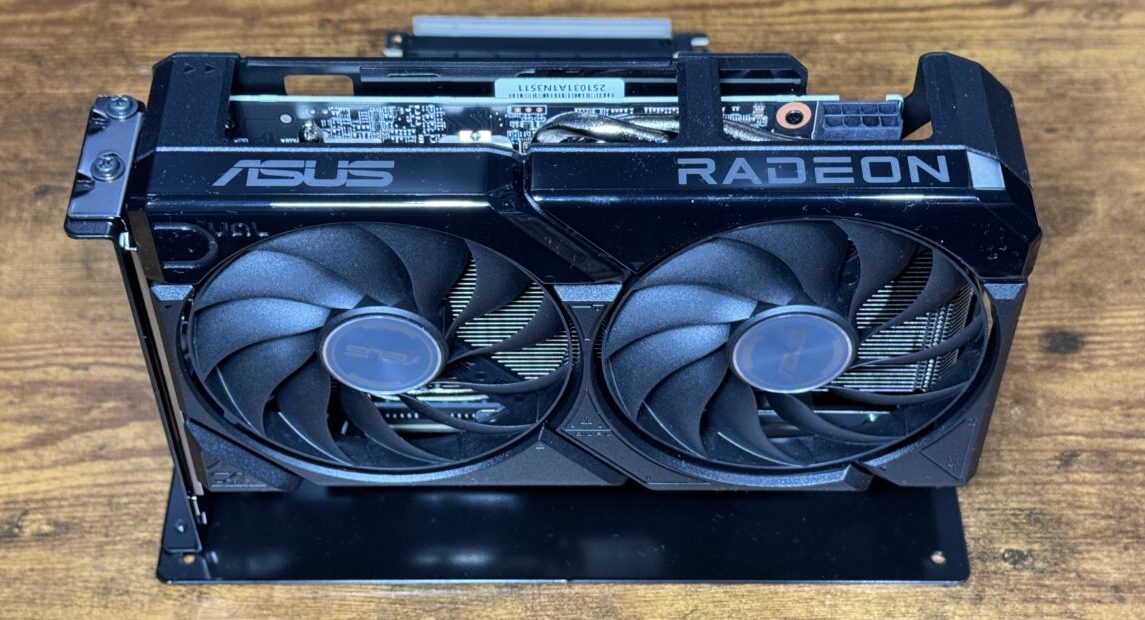
ASUS Dual Radeon RX 9060 XT 16GB
As an Amazon Associate we earn from qualifying purchases.
What I Checked
Speed is saved for next time; this time I only looked at the state right after installation. I checked four things.
- Whether it’s visible to local-LLM software without installing ROCm
- Whether the card shows up in
nvidia-smi - How much usable memory it reports, in MiB
- The biggest model size that fits
- What happens when a model doesn’t fit
- What speed it produces
- Power draw while idle
Is It Visible Without Installing ROCm?
Getting straight to the result: it was visible with nothing installed. This machine has no /opt/rocm, and rocm-smi isn’t installed either. The card is claimed by Linux’s standard amdgpu driver, and gets recognised through Vulkan — a rendering/compute layer that doesn’t care which vendor’s GPU it’s talking to.
Here’s the GPU list that showed up when I launched the local-LLM software (Ollama).
Both cards are listed. You can see from this listing that the NVIDIA side is claimed through CUDA and the AMD side through Vulkan — two separate paths. Combined, there’s about 39GB of GPU memory sitting inside one machine.
Worth flagging here: being visible and being fast are two different things. I haven’t yet measured how fast it runs over the Vulkan path.
Does the AMD Card Not Show Up in nvidia-smi?
Most people probably check GPU status with the nvidia-smi command. Running it here, only the RTX 3090 showed up.
This is expected behaviour.
nvidia-smi is a tool bundled with the NVIDIA driver — AMD cards are outside its scope from the start. Reading its absence here as “not recognised" would treat a card that’s actually installed as though it weren’t there.
For the AMD side, check these two instead.
With Two GPUs, Which One Gets Used?
Once you have two GPUs, the next headache is “which one is actually running this?" If you want to measure just one card, or keep one free for something else, you need to specify which GPU to use.
Three environment variables made a difference on my setup, passed when launching Ollama.
One thing came out of this. Add OLLAMA_VULKAN=1, and the NVIDIA card also becomes visible via Vulkan. That means I can compare the same RTX 3090 running under CUDA against the same card running under Vulkan — a way to separate “which GPU" from “which backend" as variables.
To confirm the selection took effect, check whether the GPU list in the startup log has shrunk to a single line. With that confirmed, I ran phi4-mini and got 71.43 tok/s on the RX 9060 XT side. A full set of measurements is saved for next time, but I’ve confirmed here that it runs.
Did the Selection Actually Take? Where to Check
I fell into a trap while trying to confirm whether this selection had worked. It’s worth walking through, since it doubles as a useful procedure.
At first, my plan was to spin up a second instance of the software on a different port and apply the selection there. After starting it, querying that port got a proper response. Running a small model against it gave a fast 172 tok/s. But I had specified the AMD side — this speed matches the NVIDIA side instead. I nearly concluded, “so specifying it doesn’t stop NVIDIA from getting picked."
Digging further, that wasn’t it. A different service had already been sitting on that port since boot. The instance I had just launched printed “that port is already in use" and quietly exited — the one answering my queries was the one that had been there all along. My chosen setting never reached anything.
The steps I used to redo this correctly work as a verification method on their own.
- Confirm a port is free before using it (pick a port nothing else is already sitting on)
- After launching, note the process ID. If no ID remains, the launch already failed at that point
- Read the GPU list printed in the startup log. This is the only reliable proof of which GPU the model lands on (when only the AMD side was successfully selected, the list shrank to a single line, and the NVIDIA entry disappeared)
- After loading the model, check whether that GPU’s memory usage actually rose. On my machine I confirmed this by watching it go from 532MiB to 3,481MiB
Judging by speed alone would have led to the wrong conclusion here, just as it did for me. Checking where the model actually landed was the reliable way to know.
How Much Usable Memory Does It Report?
| Where to look | Value |
|---|---|
/sys/class/drm/card2/device/mem_info_vram_total | 17,095,983,104 bytes (16,304 MiB) |
| Ollama’s startup listing | total 15.9GiB / available 15.4GiB |
Against the “16GB" on the box, what’s actually usable came out to 15.4GiB. Beyond the unit conversion, a bit is also claimed for things like display output, so the full 16GB is never entirely free. Trying to load a model that needs exactly 16GB will come up short right here.
What’s the Biggest Model That Fits?
This is the most practical part. The reported figure is 16,304 MiB, but beyond where the model itself sits, working space is also needed for computation along the way. You don’t get to use the number at face value.
Here’s what happened loading different quantisations of Qwen3.8-27B that I had on hand, from largest to smallest (measured September 6, 2026).
| Quantisation | File size | Result | Read speed | Write speed |
|---|---|---|---|---|
| UD-Q2_K_XL | 9.15 GiB | Fit | 596.3 tok/s | 24.5 tok/s |
| UD-Q4_K_S | 14.30 GiB | Fit | 562.3 tok/s | 17.5 tok/s |
| UD-Q4_K_M | 15.33 GiB | Did not fit | — | — |
| UD-Q5_K_M | 18.41 GiB | Did not fit | — | — |
| UD-Q6_K | 20.47 GiB | Did not fit | — | — |
The line fell between UD-Q4_K_S and UD-Q4_K_M. UD-Q4_K_M needs 16,397 MiB, which is 93 MiB over the usable 16,304 MiB. In terms of file size that’s just 15.33 GiB — so on a 16GB card, it still doesn’t fit.
“It’s a 16GB card, so a 15GB model will fit" doesn’t hold. Leaving roughly 1GB of headroom for the working space used during computation gets you a reasonably accurate estimate.
What Happens When It Doesn’t Fit?
Not fitting doesn’t mean things stop. Whatever doesn’t fit gets pushed onto the CPU, and it keeps running. But both speed and power draw become a different animal.
| Model | Share loaded on GPU | Write speed | Power while generating |
|---|---|---|---|
| qwen3:8b (5.57GB) | 100% | 52.9 tok/s | 151 W |
| qwen3-coder:30b (19.57GB) | 77.6% | 31.6 tok/s | 42 W |
Speed dropping is no surprise, but power draw drops too — from 151W to 42W. This happens because the GPU isn’t actually doing work; it’s idle for long stretches waiting on the CPU side, and power falls during that wait.
If power draw is falling, that’s not energy efficiency. Treat it as a sign the model didn’t fully fit.
What Speed Does It Actually Produce?
Here are five GPUs I have on hand, lined up under the same model and the same measurement method (measured September 6, 2026). The backend was Vulkan across the board.
| GPU | Write speed (8B) | Write speed (14B) | Power while generating | While idle |
|---|---|---|---|---|
| RTX 3090 24GB | 119.9 tok/s | 77.5 tok/s | 344 W | 15.4 W |
| RTX 5060 Ti 16GB | 74.8 tok/s | 44.0 tok/s | 161 W | 2.5 W |
| RX 9060 XT 16GB | 54.5 tok/s | 32.1 tok/s | 159 W | 3.0 W |
| RTX 3060 12GB | 54.5 tok/s | 35.3 tok/s | 180 W | 13.9 W |
Against the same-capacity RTX 5060 Ti 16GB, write speed came in at roughly 70%. On the other hand, idle power draw is on the low end at 3.0W — something that matters if you plan to leave the card powered on continuously.
One more thing I noticed while measuring: across these four cards, write speed lined up almost exactly with the ratio of memory bandwidth — within 2–4%. In other words, even across different card makers, memory bandwidth alone gets you a good estimate.
How Many Watts Does It Draw While Idle?
For hardware you plan to leave running all the time, idle power draw matters. These are median values from 30 samples taken once per second.
| GPU | Idle | Ceiling | Condition |
|---|---|---|---|
| RX 9060 XT (direct install) | 3.5W (min 3.0 / max 6.0) | 160W | No monitor attached |
| RTX 3090 (same machine) | 14.58W | 350W | Handling both the monitor and the desktop display |
These two are not under the same conditions. The RTX 3090 is handling display output, which adds to its draw. Don’t read these side by side as a ranking — treat each as a value for its own particular state.
That said, 3.5W idle on its own is on the easy-to-live-with end for hardware left powered on. When I measured an Intel Arc B580 previously, it idled at 34W, and I flagged that as a weak point at the time.
What I Haven’t Confirmed in This Article
- I haven’t measured speed yet. Running via Vulkan and running fast are two different things
- I haven’t installed ROCm. I don’t know what changes if I do
- The slot used this time is chipset-connected, not wired directly to the CPU. What effect that has on speed will be measured next time
Closing — What I Learned Right After Installing It
- The Radeon RX 9060 XT was visible to local-LLM software without installing ROCm — recognised through the amdgpu driver and Vulkan
- It shows up alongside the RTX 3090 in the listing. NVIDIA over CUDA, AMD over Vulkan, adding up to about 39GB of GPU memory in one machine
- The AMD card does not show up in
nvidia-smi— and that’s expected. Check the AMD side via/sysand the software’s startup log instead - Usable memory came to 16,304 MiB. Ollama’s own listing shows 15.4GiB available — the full 16GB is never entirely free
- Idle power draw was 3.5W (no monitor attached, median of 30 one-second samples). Ceiling is 160W
Speed is the first thing you’re curious about after installing a card, but the step before that — “is it visible, and how" — is where you can unexpectedly get stuck. The bit about nvidia-smi not showing it, in particular, is the kind of thing that trips up exactly the people most used to NVIDIA cards.
For anyone running local LLMs, adding a second GPU is the most straightforward way to grow your capacity. Next time, I’ll measure just how fast this card actually is.

Gear Used in This Test
The graphics card installed for this test.
ASUS Dual Radeon RX 9060 XT 16GB